Archive: 2020
-
In-Process 6th August 2020
Welcome to August! The big news this time is the release of NVDA 2020.2, so let’s get straight into it:
NVDA 2020.2 Now available
NV Access is pleased to announce that version 2020.2 of NVDA, the free screen reader for Microsoft Windows, is now available for download. We encourage all users to upgrade to this version.
Highlights of this release include support for a new braille display from Nattiq, better support for ESET antivirus GUI and Windows Terminal, performance improvements in 1Password, and with Windows OneCore synthesizer. Plus, many other important bug fixes and improvements.
Read more and download NVDA 2020.2 on the NVDA 2020.2 Release Announcement.
Troubleshooting Update Issues
While we haven’t seen any issues updating to 2020.2, after updating any software, it is a good idea to restart the PC. Restart by going to the Shutdown dialog, selecting “restart” and pressing ENTER. Updating software can change files which are in use. This can lead to instability and strange behaviour which is resolved by rebooting. This is the first thing to try if you do notice anything odd after updating.
After that, if problems persist, do please write to us with a description.
Exciting Employment Opportunity
NV Access is looking to appoint a Full-Time Software Engineer to join our small team. Your work will focus on improving our NVDA screen reading software and related online infrastructure, including feature implementation and bug fixing.
NV Access is a global non-profit organisation, based in Australia, dedicated to the ideal that access to technology should not incur an extra cost for blind and vision impaired users. The purpose of NV Access is to lower the economic and social barriers associated with accessing Information Technology for people who are blind or vision impaired. NV Access develops the free, open source NVDA screen reading software for Microsoft Windows, enabling more than 100,000 blind and vision-impaired people across the globe to access computers.
To apply for this position, you must be classed as “An Australian Resident for tax purposes”, and be prepared to work full time from home with occasional face to face meetings. Please see the full requirements, as well as application information on the NV Access Seeking Software Engineer post.
For those outside Australia
We have had a few questions about the need for Australian residency in our job advertisement. Much as we’d love to be able to cast the net wider, we aren’t able to open applications to non-Australian residents. One of the fantastic things about working for NV Access is working in a small team, able to make a real difference on a product you love. One of the few disadvantages, is that, unlike much larger companies, we don’t have the resources to operate easily across countries. As a relatively small Australian registered charity, we are currently not in a position to easily manage the complex issues across international employment law and logistics, tax laws and obligations, and everything else associated with employing internationally.
“Australian resident for tax purposes” is an Australian Government term. If you are unsure whether you qualify, please find more information on the Australian Taxation Office site.
If that changes in the future, we will publicise it across our channels and in future job postings.
I appreciate it’s no substitute, but if that requirement rules you out, there are other ways you can still contribute to NVDA. Being open source means we can accept input from anyone. There is no restriction on where you are, and we do value our many volunteer contributors around the world. We have a list of open NVDA Issues on GitHub. We are always happy to receive new, well written issues. We also appreciate people investigating and confirming existing reported issues. We also accept pull requests to resolve issues. If you have an idea which might not fit in NVDA core, you might consider creating an add-on for it. See The NVDA Add-ons site for information on add-ons. Finally, we have an active NVDA User Email Group where expertise and help is always welcome (and questions too).
That’s all for this week. Do update to NVDA 2020.2 if you haven’t already. If you have updated, please share how you are finding NVDA 2020.2 In the NVDA User Email Group. And for those applying for the NVDA Software Engineer position, best of luck with your application, and I look forward to working with you soon!
-
NVDA 2020.2 Released
NV Access is pleased to announce that version 2020.2 of NVDA, the free screen reader for Microsoft Windows, is now available for download. We encourage all users to upgrade to this version.
Highlights of this release include support for a new braille display from Nattiq, better support for ESET antivirus GUI and Windows Terminal, performance improvements in 1Password, and with Windows OneCore synthesizer. Plus many other important bug fixes and improvements.
Please note, after updating any software, it is a good idea to restart the computer. Restart by going to the Shutdown dialog, selecting “restart” and pressing ENTER. Updating software can change files which are in use. This can lead to instability and strange behaviour which is resolved by rebooting. This is the first thing to try if you do notice anything odd after updating.
While downloading NVDA, please consider becoming a monthly donor. Contributions like yours help NV Access continue our important work.
We also have a range of training material in the NV Access Shop to help you increase your skills with NVDA. Start with the popular Basic Training for NVDA in electronic text, audio and braille. Save with the NVDA Productivity Bundle. This includes Basic Training, all our Microsoft Office training, and telephone support.
To find out what’s new in this release, please visit What’s new in NVDA 2020.2
Close-up photograph of NVDA logo in notification area.
-
In-Process 20th July 2020
Can you believe we’re already and only halfway through 2020? More importantly, we’re inching ever closer to NVDA 2020.2.
2020.2 Release Candidate
The big news is, NVDA 2020.2 is nearly here! The NVDA 2020.2 Release Candidate is now available. This is a final version for everyone to check to ensure there are no major issues we haven’t yet spotted. All going well, the final release will be in the next few weeks. We’d encourage everyone to download the NVDA 2020.2 Release Candidate and check out the new features! What new features? Well, since we want you to download the RC, I’m going to encourage you to do that, and read the “What’s new” from the help menu! Ok, there’s a link on the NVDA 2020.2 Release Candidate Announcement Page as well.
Modified NVDA Logo with “RC1” text
NVDA Satisfaction Survey
The NVDA Satisfaction Survey 2020 is about at an end. If you haven’t filled it in yet, please do take the opportunity before it closes. There are only three questions, and two of them are multiple-choice. Plus, you don’t need to register or log in anywhere, it couldn’t be easier!
Find all the details on the NVDA Satisfaction Survey 2020.
Microsoft PowerPoint with NVDA training module
The other big news this week is that we’ve released a new training module! Microsoft PowerPoint with NVDA is now available. This module covers all the features to make your presentations a hit. From adding content to a slide through to setting slide timings. Adding live captions and presenting online are all covered. It’s available for the same low price as our other electronic training modules from the NV Access shop. It’s also now included in the updated NVDA Productivity Bundle.
Cover page for Microsoft PowerPoint for NVDA by NV Access. Title in purple and white on turquoise. NV Access logo in purple.
Training module pricing
We have made a small increase to our prices, the first in the four years we’ve been selling training material in the https://www.nvaccess.org/shop/. This is in line with the increased cost of production that we have experienced over that time. The increase is $2 Australian for each of the electronic modules. The increase is $3 for the Basic Training for NVDA Downloadable Audio. We have kept the price of the Basic Training for NVDA Braille material steady at $65 AUD, including worldwide shipping.
For the electronic text, including the new Microsoft PowerPoint with NVDA module, $32 AUD converts to just over $22 USD. That is just under €20 or just under £18 according to Google this morning.
We have also made some changes to the NVDA Productivity Bundle. We have added the PowerPoint module to it, and decreased the number of support hours to 3. That has resulted in a decrease in cost, bringing the bundle down to just $199 Australian. So you now get the 5 training module eBooks plus 3 hours of telephone support at a discounted price of $199.
Finally on pricing for those who have previously purchased the productivity bundle. If you would like to add Microsoft PowerPoint with NVDA to your collection of modules, we would love to give you 50% off the price. It’s not automatic, so please do Contact Us to take advantage of that offer.
Thanks for believing in us!
We’d like to take the opportunity this week to thank Intopia, who continue to be a generous supporter of NV Access. They are a great believer in our mission to lower the economic and social barriers associated with accessing Information Technology for people who are Blind or Vision Impaired. Did you know you can find our story, our statement of purpose and our organisational structure on our website? All this and more is on the “About NV Access” page.
There’s even a description of the NV Access logo and the Sunburst design. From the About NV Access page:
The NV Access logo could broadly be described as “sun-shaped”, using the colours purple, turquoise and orange.
The NV Access logo is a hollow purple sun shape with 16 points. 8 points are sharp and triangular, coloured in purple. The purple points alternate between either orange or turquoise rounded points. Inside the circle of the sun is a purple diamond outline, and in the centre is a hollow turquoise ring.
To the right of the logo are the words “NV Access” above the tag-line “Empowering lives through non-visual access to technology”. The text “NV” is in orange and the rest of the text is in purple. There is a purple horizontal line in the centre, between the company name and tag-line.
The sun logo itself is about a third of the total width, with “NV Access” in large text and the tag-line smaller.
That’s the NV Access logo, but what is the Sunburst design? You’ll have to read the About NV Access page to find out!
Bonus points to those who find the description of the NVDA logo. Hint: It’s not on the “About NV Access” page, but not far away…
That’s all for this week. Do try the NVDA 2020.2 Release Candidate and let us know how you find it. If you haven’t completed the NVDA Satisfaction Survey 2020, please consider adding your voice. And while you wait for the final 2020.2 release, why not take the opportunity to build on your Microsoft PowerPoint with NVDA skills! Catch you next time.
-
NVDA 2020.2rc1 available for testing
The Release Candidate (RC) of NVDA 2020.2 is now available for download and testing. We encourage all users to download this RC and provide feedback. Unless any critical bugs are found, this will be identical to the final 2020.2 release.
Highlights of this release include support for a new braille display from Nattiq, better support for ESET antivirus GUI and Windows Terminal, performance improvements in 1Password, and with Windows OneCore synthesizer. Plus many other important bug fixes and improvements.
- Download NVDA 2020.2rc1
- What’s new in this release of NVDA
- Please report any issues on GitHub.
-
In-Process 25th June 2020
The release of NVDA 2020.2 is edging ever closer. Let’s start with all the details on the new NVDA 2020.2 Beta:
NVDA 2020.2 Beta 2
Text “BETA 2” in turquoise over a dark background on top of the white on purple NVDA logo.
One of the first big public steps in the lead up to a new NVDA version is the Beta release. This version contains most of the code destined for the final release. The main point of the beta release is to get more people using updated features before the final version. This helps us pick up on any issues before the official, stable build comes out. As well as helping test new code, it’s also a great chance to get a “sneak peek’ at what is coming up in NVDA! Although the beta is a pre-release version, it behaves the same as a regular version of NVDA. The launcher is the same when you run it. So, you can install the beta, create a portable version or continue running the temporary copy).
We often release several beta versions while bugs are fixed, translations updated and so on. As this post is published we are at NVDA 2020.2 Beta 2.
The Release Announcement For The Beta has all the key information and download links. Highlights of this release include support for a new braille display from Nattiq, better support for ESET antivirus GUI and Windows Terminal, performance improvements in 1Password, and with Windows OneCore synthesizer.
Big Beta Bug Bash
In recent versions, we haven’t had as many people using the beta builds as we would hope. This is reflected in the number of times we have had to release a “.1” build after a “stable” release.

A small ugly purple and orange bug
So, let’s have a Big Beta Bug Bash! Anyone who documents a new bug from the beta, gets a voucher for 10% off a training module from the shop. That includes for the soon to be released PowerPoint training module! The rules are simple:
- You have to file a GitHub issue, with a new (not duplicate of a previous) issue
- The issue has to include a log, at debug level, from the current (at the time) beta version
- The issue has to be correctly filled out, with steps to reproduce, system info, etc
- Limit one voucher per person (No limit on number of bugs you can submit though)
One difference between Beta and RC builds is beeping for errors. When NVDA encounters an error, as well as being recorded in the log, the Beta version will play an error sound to alert you. The Release Candidate (and final stable version) do not beep. Often, when encountering an error, NVDA will try something else to achieve what it was trying to do. In this case, if the fall back plan works, an end-user may not notice any problem. That is why, when using a beta version, you may hear an error sound, even though nothing seems amiss. Whether participating in the Big Beta Bug Bash or not, please do let us know of any errors you encounter. We are especially keen to hear when things don’t work as expected. That will give us a chance to investigate before the final version comes out.
Once we are confident the beta is working well and ready for prime time, the next step is a “Release Candidate”. The Beta version will prompt to update to any further beta builds, and to the RC build when it comes out. The Beta and RC builds will also prompt to update to the final version when it is released.
Once again, please do go to the NVDA 2020.2 Beta 2 Release Announcement to download the beta, then do let us know how you find it.
Password managers
One of the highlights coming up in 2020.2 is performance improvements in 1Password. 1Password is a popular password manager. For those who aren’t familiar with them, I thought it was worth covering a bit about password managers.
Almost every site or service we use requires a password. Now, more than ever, it is crucial to have strong, secure passwords. It is also important to avoid using the same password on many services. One of the best ways of doing that is with a password manager. A password manager is a program which keeps track of all the passwords for all your services. Many password managers can automatically fill in your login details when you go to a site they know. A lot of these apps are “cross-platform”, so they can sync your passwords between say your PC and your phone.
1Password is one such password manager. If you decide to try it out, you can find out more information at https://1password.com/
Because of the recent improvements, we recommend using 1Password with NVDA 2020.2 Beta 2. There are many other accessible password managers out there. This question comes up regularly in the NVDA Users Email Group. Previously, as well as 1password, other suggestions included Bitwarden, KeePass and Last Pass. If you are happy keeping your data in your browser without a third-party program, that is possible too. Both Chrome (and most Chromium-based browsers) and Firefox have built-in password managers. Which works best for you will depend on your personal preferences and what features you want. Do join in the conversation on Twitter and let us know what your favourite is!
Kickstarter for an accessible digital card game
I saw this posted on Facebook, and I know games are always popular. I don’t know anything more on this one but thought I’d share it so anyone interested can express interest:
“There’s a digital card game being worked on, we’re looking at having a fully open demo in roughly a week. There’s a Kickstarter For Cards Of Yore. If anyone is interested in checking it out, showing interest so investors know just how many people would want to play such a game if funded and produced. The game is accessible for certain with NVDA”.
Kickstarter is a platform where people put forward a project they would like to create. If others like the idea, they can pledge money. The money then goes towards bringing the project to life. When ready, creators send the backers whatever was promised for the amount pledged. So it’s not a store as such, but for successful projects, can be a way of being one of the first to get something new. Kickstarter is an all or nothing setup. The creator states up front how much they need for the project and what they will do with the funds. If people pledge enough to reach that goal, the project gets funded. Otherwise, it doesn’t cost anything.
NV Access is not affiliated with either Kickstarter, or Cards Of Yore (this particular project). I just saw it on Facebook and thought I’d share it.
Lastly for this week, a quick mention that the NVDA Satisfaction Survey 2020 is still open. As a key tool we use to gauge user sentiment, we’d love as many responses as possible. If you haven’t already, please do complete the survey. We addressed some early issues, so if you had any issues previously, please do try again. Also, please try NVDA 2020.2 Beta 2 and remember to join in the Big Beta Bug Bash.
-
NVDA 2020.2beta2 Available for Testing
Beta2 of NVDA 2020.2 is now available for download and testing. For anyone who is interested in trying out what the next version of NVDA has to offer before it is officially released, we welcome you to download the beta and provide feedback.
Changes from Beta1:
- Updated translations for many languages
- Small corrections to the changes file.
- No longer speak “object replacement character”
- Adds Ukrainian computer Braille table
Highlights of this release include support for a new braille display from Nattiq, better support for ESET antivirus GUI and Windows Terminal, performance improvements in 1Password, and with Windows OneCore synthesizer. Plus many other important bug fixes and improvements.
- Download NVDA 2020.2beta2
- What’s new in this release of NVDA
- Please report any issues on GitHub.
-
NVDA 2020.2beta1 Available for Testing
Beta1 of NVDA 2020.2 is now available for download and testing. For anyone who is interested in trying out what the next version of NVDA has to offer before it is officially released, we welcome you to download the beta and provide feedback.
Highlights of this release include support for a new braille display from Nattiq, better support for ESET antivirus GUI and Windows Terminal, performance improvements in 1Password, and with Windows OneCore synthesizer. Plus many other important bug fixes and improvements.
- Download NVDA 2020.2beta1
- What’s new in this release of NVDA
- Please report any issues on GitHub.
-
In-Process 11th June 2020
This week we have a community demonstration of NVDA’s Screen curtain, a guide to browse and focus modes, and lots more. Let’s get into it!
NVDA Satisfaction Survey 2020
Last time around we launched the NVDA Satisfaction Survey 2020. We’ve had some great feedback from users who have already completed the survey on how they feel about NVDA. We’d love to capture even more of your thoughts. Please do continue to Fill In The Survey.We’ve also addressed a small issue a couple of users encountered. If you had problems earlier, please do try again.
NVDA Satisfaction Survey 2020
Screen Curtain
In NVDA 2019.3, we debuted a new Screen Curtain Feature. The feature had existed in an add-on but it was something many users were happy to see built-in to NVDA itself. If you still have the add-on, you can remove it in NVDA 2019.3 or later.
If you’re wondering what screen curtain does, one of our users has you covered there too. Greg Keefe has made a Video Demonstrating Screen Curtain.
Greg runs a YouTube channel called “The Blind Guy Show”. Greg’s demo of screen curtain is just one of the videos on that channel. One of his other videos which is well worth watching, demonstrates how he uses the audio editor Audacity with NVDA.
In The Media
We try to include articles, blogs, and other media about NVDA, such as Greg’s channel, here in In-Process. We also have a page dedicated to such links. We call the page “In The Media”.
The most recent links are also included under the featured NVDA Story on our News Page.
If you’ve seen an article, blog, video or other media about NVDA, do please Get In Touch And Let Us Know.
Focus and Browse modes
We often get asked about NVDAs “Modes”, so let’s take a look at the main ones. The two main modes NVDA use are Focus mode and Browse mode. Focus mode is used when editing text, such as in Word or Notepad, or when typing into a text edit field in your browser. Browse mode is used when reading text. It is automatically used on the web when not in an edit field. Browse mode lets you use single letter navigation, such as H for heading, T for table or D for landmark. You can find a list of single letter navigation keys in the NVDA User Guide.
On the web, NVDA can automatically switch between focus and browse mode when moving between read-only content and form fields. To set when NVDA switches between browse and focus mode, open NVDA’s Browse Mode Settings. Press NVDA+control+b to open this dialog directly. As well as the “Automatic Focus Mode for…” options, there are some others worth pointing out. “Automatic say all on page load” controls whether NVDA reads out the page as soon as it loads. “Audio indication of focus and browse modes” sets whether NVDA plays a sound (an ‘earcon’) when changing modes. If this option is disabled, NVDA speaks “Browse mode” or “Focus mode” as it switches.
On a form field, you can switch back to browse mode by pressing escape. You can switch back to focus mode with enter. To also force NVDA to switch between Browse mode and Focus mode press NVDA+spacebar. When changing modes with NVDA+spacebar, NVDA will no longer automatically change again while on that page. NVDA+spacebar is useful on forms which have passages of text between form fields. Forcing focus mode on such a page stops the page switching back and forth and can be less distracting. It is also useful in Microsoft Word to use browse mode single letter navigation commands or the elements list.
All of these commands and keystrokes are in the User Guide. If you aren’t already familiar with how they work, we’d recommend “Basic Training for NVDA” which is available in The NV Access Shop in a range of formats.
That’s all for this week. Do please Complete The NVDA Satisfaction Survey 2020, stay safe and we’ll be back again soon.
-
In-Process 26th May 2020
This week, the main news from NV Access is that we are launching the 2020 Satisfaction survey. As well as the survey, this week we have a couple of interesting feature walkthroughs to bump up your skills. Do you have a topic you’d like us to cover on In-Process? Email us and let us know!
NVDA Satisfaction Survey 2020
While we’re all spending a lot less time physically with others, it’s important to keep in touch with each other. NV Access is no different and we would love to hear from you, however you use NVDA. To that end, we have released a Very Short Survey and would love your feedback. The survey is anonymous. Your feedback will help us determine what is working well, and what we can improve.
If you’d like to have your say, please Complete the NVDA Satisfaction survey 2020 now.
The survey is open until the 3rd of July.
Playing CDs in Windows 10
You can set Windows 10 to play audio CDs and other media automatically when it is inserted. Alternatively, if this is enabled, and you don’t want it, you can disable it. Either way, here are the steps:
- Press the WINDOWS key to open the start menu
- Type the following and press ENTER:
Play CDs - When the autoplay dialog opens, the first option is “Use autoplay for all media and devices”. If this checkbox is not checked, press SPACEBAR to check it
- Press TAB to move through the options. The first group are for Removable drives such as memory sticks or portable hard drives. There are also options for camera storage, DVDs, Blu-Ray disks and CDs. TAB down to “Audio CD” (the 10th option on my system, but may be different on others)
- Use the UP and DOWN ARROWS to select an option for playing audio CDs
- Press TAB to “Enhanced audio CDs” and again select an option for this type of media. Enhanced audio CDs are audio CDs which also contain data which can be used on the PC
- Use TAB and the ARROWS to select any other options on this screen (eg to autoplay DVDs), and when done, press ENTER
Now, when you insert an audio CD, it should play automatically.
Audio Ducking
NVDA has an option called “Audio ducking”. This option can make other audio, such as CD music, quieter while NVDA is running. It can be set to lower the volume of other sounds whenever NVDA is running, or only while it is actually speaking. To change this option, use NVDA’s synthesizer dialog. First of all, you’ll need to know your NVDA modifier key – depending on your setup, it will either be INSERT or CAPS LOCK.
- Press NVDA+control+s to open the synthesizer dialog
- Press TAB twice to “Audio ducking mode”
- Use the arrow keys to select the desired option and press ENTER
The three ducking options are:
- No ducking does not change the volume of other programs. This option is the default but may mean your CD music is as loud as NVDA
- Duck when outputting speech and sounds will make other sounds quieter only when NVDA is actually speaking
- Duck always will always make other sounds quieter as long as NVDA is running
You can also change the audio ducking mode at any time with NVDA+shift+d. Note that Audio ducking only works on Windows 8 or later, and only with NVDA installed (not from a portable copy).
NVDA and Languages
NVDA works in many languages. The interface (the settings screens and messages) are translated into over 50 languages. NVDA can work with 50 languages with Windows OneCore Voices. With eSpeak-NG, NVDA can work with 115 languages. Third party synthesizers are available to work with other specific languages.
NVDA can change languages and dialects while reading. These options are in NVDA’s Speech settings. Press NVDA+control+v to open the speech settings. “Automatic Languages Switching” and “Automatic dialect switching” both have the disclaimer “When supported”. NVDA and the synthesizers themselves don’t actually recognise words in other languages. They also don’t translate text from one language or another. Synthesizers know how words or letters are generally pronounced in particular languages. It is up to the document or program to report what language it is using. In web pages, this can be set in the HTML itself with a tag such as:
</p> <p lang="en-au">This text is in Australian English</p> <p lang="fr-fr">Ce texte est en français</p> <p> In Office 365, this is set from the Language section of the Review Ribbon:
- Select the text to change the language for (CONTROL+A) for the whole document)
- Press ALT+R to open the Review ribbon
- Press Z then L to select “Language”
- Press U, then L to set proofing language
- In this dialog you can set the language for the selected text
- Press the OK button to set the language for this text. Press the “Set as default” button to change your default language
We rely on volunteers to translate the NVDA user interface. If this is something you are interested in and capable of helping with, we’d love to have you on board. Please see our Translating NVDA Wiki page for more information on how to get involved.
NVDA’s default synthesizer is Windows OneCore Voices for Windows 10. To install a new OneCore voice in Windows 10, install the appropriate Language and Speech Pack. If OneCore voices don’t have a language you need, contact the Microsoft Disability Answer Desk. They help with any matters of accessibility. In this case, explain how you need a specific language to read text with NVDA.
For Windows 8.1 and earlier, eSpeak-NG is the default synthesizer. eSpeak-NG is an open source project, like NVDA. The eSpeak-NG project also have a process for adding new languages. Please see their Add Language to eSpeak-NG page at for how to get involved in adding a new language.
That’s all for this week. Until next time, stay safe, stay healthy, and do stay in touch! Join the NVDA User group, or follow us on Twitter or Facebook.
-
In-Process 14th May 2020
Welcome to another In-Process, and to May! The big news this time around (aside from having survived April) is the release of NVDA 2020.1. Let’s start there:
NVDA 2020.1
NVDA 2020.1 is now available. Highlights of this release include support for several new braille displays from HumanWare and APH. Plus many other important bug fixes such as the ability to again read math in Microsoft Word using MathPlayer / MathType.
While a much smaller update than 2019.3, this does bring fixes and features which should make life a bit easier. Staying awake during say all and better checkbox state reporting are two such fixes. For those using Mastadon, there is better timeline rendering in Firefox. For some users, being able to do a right mouse click on a touch screen with a one finger tap and hold will be really useful. For others, new bugs cause errors never seen before. No, wait, that last one isn’t supposed to be there! If you DO find any bugs, do please either Report Issues on GitHub, or Let Us Know. You can also ask on the NVDA Users Mailing List if you’re unsure.
To find out more, read the full release notes and Download NVDA 2020.1 from the Release Announcement
A quick reminder, when you update, it’s a good idea to restart the computer from the shut down menu. This ensures that everything gets initialised properly. It can cut down on random issues which crop up between updating something and restarting the PC. If you do encounter a weird bug, try restarting the PC to see if that fixes it. Also, press NVDA+Q then down arrow to “Restart with add-ons disabled” and press ENTER. This narrows down whether an issue is likely to be in NVDA or in an add-on.
Also a reminder that if you are in a position to help, now is a great time to consider becoming a Monthly NV Access Donor. It helps us continue to ensure we can provide the world’s favourite screen-reader to all who need it free of charge. It is also tax-deductible in some jurisdictions (Australia at least – see your local tax agency for local rules).
Google Summer of Code
As Reported in March NV Access is a Google Summer of Code (GSOC) 2020 Mentor Organisation.
After considering all the excellent applications, we are pleased to introduce our mentoree. On behalf of NV Access I would like to officially welcome Shubham Jain to the NVDA project. Shubham joins us as our Google Summer of Code 2020 student.
Between now and the end of August, Shubham will be working on “Image captioning and Object recognition modules for NVDA”. Read Shubham’s Project Abstract on GSOC
Please join me in making Shubham welcome!
NVDA Contributor Honoured
Congratulations today also to Joseph Lee. As well as being a prolific NVDA Contributor, Joseph Lee is a graduating college debate and speech champion. Joseph was recently named American Forensic Association National Individual Events Tournament (AFA-NIET) All-American. Only fifteen people receive this prestigious honour across the whole United States of America for the year. The award recognizes graduating and would-be graduating college speech and debate competitors who have shown excellence in speech competitions, college studies, and community service. As far as we can find out, Joseph appears to be the first blind recipient of this honour, in the history of this award. If you’ve ever participated in any of the NVDA Forums, then you’ll have read Joseph’s insightful knowledge. If you’ve ever been to one of Joseph’s speeches or debates, you have likely heard him champion NV Access and the NVDA screen reader in competitions.
Touch Gestures
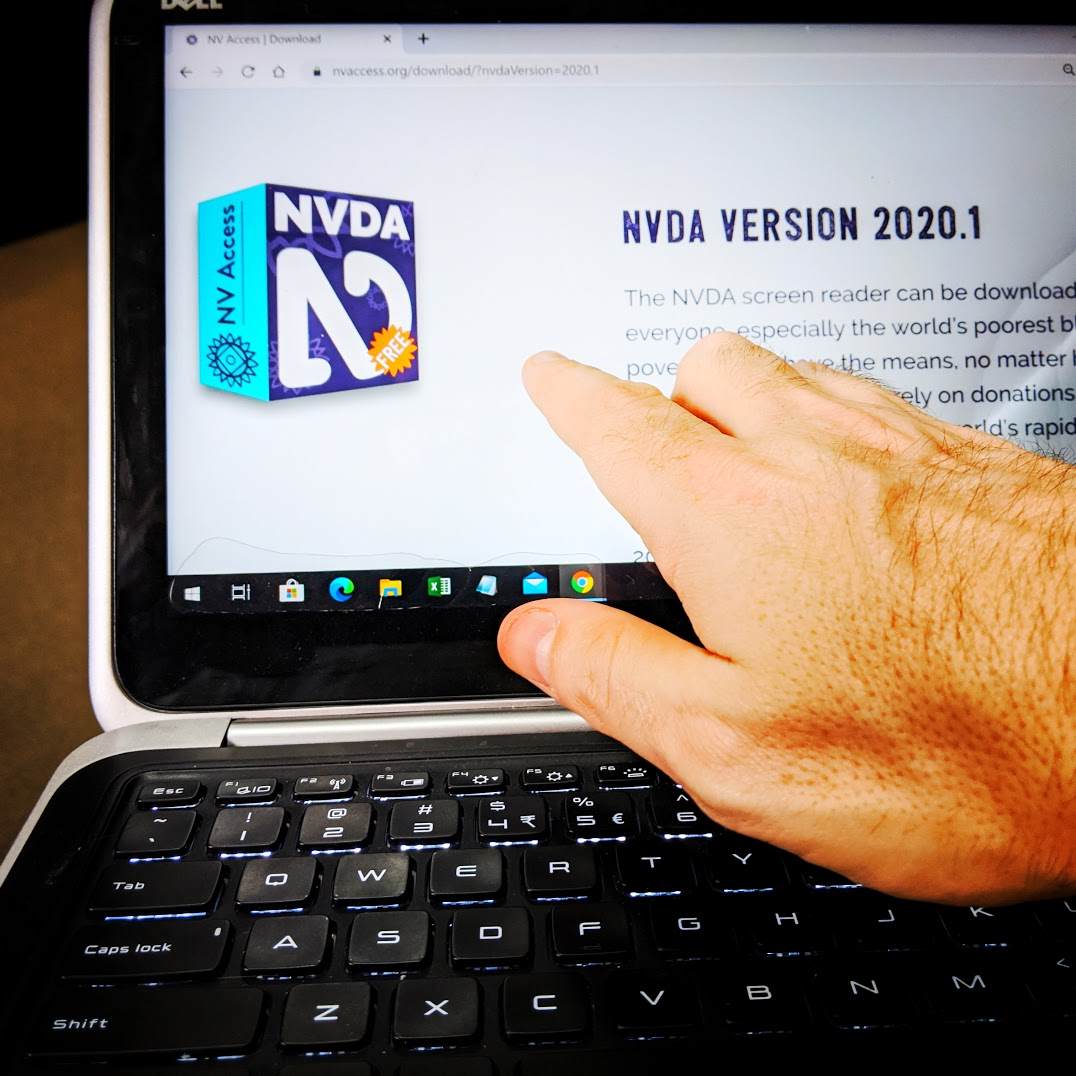
Hand reaching for laptop touch screen showing NVDA download
One of the new features in NVDA 2020.1 is the ability to perform right mouse clicks on touch devices by doing a one finger tap and hold. I thought I’d take this opportunity to explore how you can use NVDA with a touch screen.
Section 4.3 of the NVDA User Guide covers the different touch gestures available:
To use touch gestures, you must have a device with a touch screen, running Windows 8 or higher. You also need to have NVDA installed, it won’t work with a portable version.
The most basic action you can perform with the touch screen is to announce the control or text at any point on the screen. To do this, place one finger anywhere on the screen. You can also keep your finger on the screen and move it around to read other controls and text that your finger moves over.
Touch gestures can involve several different actions:
- You can tap the screen quickly with one or more fingers.
- You can repeat this several times quickly to form a “multi-tap” gestures.
- You can “flick” one or more fingers across the screen either up, down, left or right.
NVDA has two different touch modes:
- Text mode, is used to interact with text, eg flicking right moves from one letter to the next in a document.
- Object mode, which interacts with objects. Flicking right here might move from the ribbon, to the text field in a document to the status bar.
Perform a three finger tap to change between these two touch modes.
You can also access a touch keyboard. This can be used to enter text and commands from a touchscreen. When focused on an edit field, you can bring up the touch keyboard by double-tapping the touch keyboard icon on the bottom of the screen.
So, let’s look at some other touch commands available within NVDA out of the box:
- 1 finger tap: Move the review cursor to the location of the tap. You can also drag your finger around the screen to have NVDA report items as your finger moves over them. When you let go, the review cursor will be at the last item reported.
- 1 finger double-tap: Activate the current item.
- 2 finger tap: Stops speech (the same as pressing control).
- 2 finger double tap: Open the NVDA menu (the same as pressing NVDA+n)
- Flick right: Move to the next letter (text mode) or next object (object mode)
- Flick left: Move to the previous letter (text mode) or previous object (object mode)
There are also gestures setup to use object navigation, and the review cursor, as well as changing review modes.
To find a program shortcut on the desktop, swipe left or right to move between the icons. Alternatively, swipe left or right to move between the items. Once the desired item is found, double tap quickly anywhere on the screen. To move around features in the newly opened program, explore or swipe in the same way.
To move around text in a document, use the following commands:
-
First, three finger tap to use text mode. After that:
- Swipe right to move forward one character
- Swipe left to move back one character
- Swipe up to move up one line
- Swipe down to move down one line
- 2 finger flick right to move forward one word (like control+right arrow)
- 2 finger flick left to move back one word (like control+left arrow)
- 3 finger flick down to read from the current point onward.
NVDA hasn’t defined as many touch gestures as keyboard gestures. You can define more gestures using NVDA’s input gesture dialog. Press NVDA+n (or two finger double tap) to open NVDA’s menu. From the Preferences menu, select “Input Gestures”. Select the gesture to modify, then “add”, and then perform the gesture to associate with the command. There is more information on the Input Gestures Dialog, in the User Guide.
That’s all for this week. If you haven’t already downloaded NVDA 2020.1, Do Check It Out! Or, have you tried NVDA’s touch screen support? Share your thoughts in the NVDA Users Email List. Until next time, stay safe and healthy!