Archive: 2020
-
In-Process 9th October 2020
We’re very close to a new NVDA version! The first release candidate is out, so let’s start with that:
NVDA 2020.3 Release Candidate
Following on from the beta releases over the past few weeks, NVDA 2020.3 RC1 has been released. This is a release candidate, and unless any critical issues are found, this will be identical to the 2020.3 release. I would encourage everyone to Please Test This Release Candidate.
There are improvements to stability and performance, particularly in Office. There is a new German Braille table, and eSpeak-NG has been updated. There are new touchscreen options, and we’ve added new emulated system keys in the input gestures dialog.
More highlights and download links can be found in the NVDA 2020.3 Release Candidate Announcement.
Updated Job advertisement
NV Access is still seeking to appoint a Full-Time Software Engineer to join our small team. Your work will focus on improving our NVDA screen reading software and related online infrastructure, including feature implementation and bug fixing. You must be an Australian Resident (For Tax Purposes). We have updated the advertisement with new details. So, for all the information, and to apply, please refer to our Full Time Software Engineer Job Advertisement.
Code of conduct
NV Access has always been lauded for upholding the highest moral and ethical standard. We have recently formalised this ethos into a code of conduct. This code of conduct doesn’t comprise anything unusual or surprising. Indeed, there isn’t anything listed which wasn’t already standard behaviour, either for us, or for the NVDA community overall. You can find a copy of the code of conduct in the main NVDA Files Repository on GitHub. The direct link to the Code of Conduct itself is https://github.com/nvaccess/nvda/blob/master/CODE_OF_CONDUCT.md. Going forward, this will be the code of conduct for NV Access owned forums, such as our GitHub repository. We would encourage other NVDA-based communities to consider adopting similar codes of conduct, which you are welcome to base off this document.
NVDACon 2020 call for topics
NVDACon 2020 is fast approaching. Robert Hänggi, the chair, has posted a Call for Topics Letter to the Community, calling for submissions for the conference.
There are a number of new presentation types and lengths, so if you haven’t presented before, or been worried that your presentation might not be the right length or style, Have a Look at the Call For Topics For NVDACon 2020, there’s sure to be something to suit!
Another of the NVDACon organisers, Derek, is looking into the possibility of live streaming sessions on YouTube. Because YouTube has the provision for visuals as well as audio, Derek would like to know what you would have as visuals with each presentation? Email [email protected] with your thoughts and suggestions.
Reading foreign languages:
Jen Jesso of the Provincial Resource Centre for the Visually Impaired in Vancouver has put together a handy guide for Setting up NVDA to Read Foreign Languages. These are very useful for anyone who uses NVDA with multiple languages regularly.
New Accessible game
Many people have been following the progress of the Tau Station project. The project has made it to Kickstarter now and is seeking backers. Tau Station describes itself as an “MMO Biblio RPG”, an expansive and beautifully written science fiction novel and a grippingly immersive, massively multiplayer role-playing game. If that sounds like the kind of thing you’d enjoy, then you might consider backing Tau Station on Kickstarter.
That’s all for this week. NVDA 2020.3 will either be out, or very close to it by the time our next In-Process comes out. In the meantime, do please try the NVDA 2020.3 Release Candidate and Let Us Know what you think.
-
NVDA 2020.3rc1 available for testing
The Release Candidate (RC) of NVDA 2020.3 is now available for download and testing. We encourage all users to download this RC and provide feedback. Unless any critical bugs are found, this will be identical to the final 2020.3 release.
NVDA 2020.3 includes several large improvements to stability and performance, particularly in Microsoft Office applications. There are new settings to toggle touchscreen support and graphics reporting. The existence of marked (highlighted) content can be reported in browsers, and there are new German braille tables.
- Download NVDA 2020.3rc1
- What’s new in this release of NVDA
- Please report any issues on GitHub.
-
NVDA 2020.3beta4 Available for Testing
Beta4 of NVDA 2020.3 is now available for download and testing. For anyone who is interested in trying out what the next version of NVDA has to offer before it is officially released, we welcome you to download the beta and provide feedback.
Changes since Beta3:
- “Automatic focus mode for caret movement” setting is now compatible with disabling “Automatically set focus to focusable elements”.
- Reverted change to SAPI5 synth driver which introduced regressions.
- Updated translations for many languages.
Changes since Beta2:
- Major performance improvements in Visual Studio Code.
Changes since Beta1:
- Updated translations for many languages.
- Small corrections to the changes file.
- Ensure that ‘Microsoft Sound Mapper’ entry under output devices is translated.
- Handy Tech Active Braille with joystick is now supported.
- Certain SAPI5 voices (such as Ivona) no longer skip speech.
NVDA 2020.3 includes several large improvements to stability and performance, particularly in Microsoft Office applications. There are new settings to toggle touchscreen support and graphics reporting. The existence of marked (highlighted) content can be reported in browsers, and there are new German braille tables.
- Download NVDA 2020.3beta4
- What’s new in this release of NVDA
- Please report any issues on GitHub.
-
NVDA 2020.3beta3 Available for Testing
Beta3 of NVDA 2020.3 is now available for download and testing. For anyone who is interested in trying out what the next version of NVDA has to offer before it is officially released, we welcome you to download the beta and provide feedback.
Changes since Beta2:
- Major performance improvements in Visual Studio Code.
Changes since Beta1:
- Updated translations for many languages.
- Small corrections to the changes file.
- Ensure that ‘Microsoft Sound Mapper’ entry under output devices is translated.
- Handy Tech Active Braille with joystick is now supported.
- Certain SAPI5 voices (such as Ivona) no longer skip speech.
NVDA 2020.3 includes several large improvements to stability and performance, particularly in Microsoft Office applications. There are new settings to toggle touchscreen support and graphics reporting. The existence of marked (highlighted) content can be reported in browsers, and there are new German braille tables.
- Download NVDA 2020.3beta3
- What’s new in this release of NVDA
- Please report any issues on GitHub.
-
In-Process 24th September 2020
Well we made it to the equinox I promised last time around! It’s now either Spring, or Autumn (or Fall), and hopefully the weather is nice where you are.
NVDA 2020.3 Beta 2
Text “BETA 2” in turquoise over a dark background on top of the white on purple NVDA logo.
The first news this time around, is the release of a Beta Version of NVDA 2020.3, two, in fact. Last week we released NVDA 2020.3 beta 1, and this week we have released a second beta. NVDA 2020.3 includes several large improvements to stability and performance, particularly in Microsoft Office applications. There are new settings to toggle touchscreen support and graphics reporting. The existence of marked (highlighted) content can be reported in browsers. There are also new German braille tables.
We’ve been asked whether we recommend people install the beta. The answer depends on your own skill level and desire to test new features. Of course, every effort is made to ensure the beta works smoothly. The main reason for having a beta, however, is for people to test it before releasing the final version. If you do test it, please ensure you have a way of returning to your previous stable version if things don’t work. Most users can test features by using the beta as a temporary or portable copy. The temporary copy is the one which starts when you run the downloaded file. Choose “Continue” to keep running that copy and test what you’d like to check. If you “Create portable copy”, you can specify a folder (on your hard drive or a removeable USB) to setup a copy of NVDA on. This works like the temporary option, except changes to settings are saved in that copy. You will need to either create a shortcut or specifically run it from that folder each time. Either way, again it won’t interfere with your installed version.
Read the full what’s new, and download the beta from the NVDA 2020.3 Beta 2 Announcement.
NVDACon
This year’s NVDACon, the online conference for all things NVDA, is fast approaching. One of the great things about NVDACon, is that it is organised and run entirely by users!
This year’s NVDACon will be held the weekend of the 5th / 6th December, with the theme “Bridging the Distance”. The NVDACon organisers are currently calling for submissions. Options range from “Thunder clap tweets” to full length sessions and everything in-between. Contact [email protected] with your session ideas!
Software Engineer Sought
We’re Hiring text in purple with sunburst decorations
NV Access is seeking to appoint a Full-Time Software Engineer to join our small team. Your work will focus on improving our NVDA screen reading software and related online infrastructure, including feature implementation and bug fixing. You must be an Australian Resident (For Tax Purposes). For all the details, and to apply, please refer to our Full Time Software Engineer Job Advertisement for all the details and to apply.
How has NVDA benefitted you?
As this turbulent year continues, we want to hear your good news. Please Email Us and tell us, how has NVDA benefitted you during the pandemic? We’ve had excellent responses to this question so far from our Twitter and Facebook followers. We’d love to Hear From You also!
Google Summer of Code
This year’s Google Summer of Code has ended, and we’re pleased to share the final report from our student, Shubham. Shubham created proof of concept Image captioning and Object detection add-ons for NVDA. Note that these are proof of concepts which may provide the basis of future work in this area. They are not themselves finished and polished products. Read Shubham’s Full Report now.
NVDA in the charts
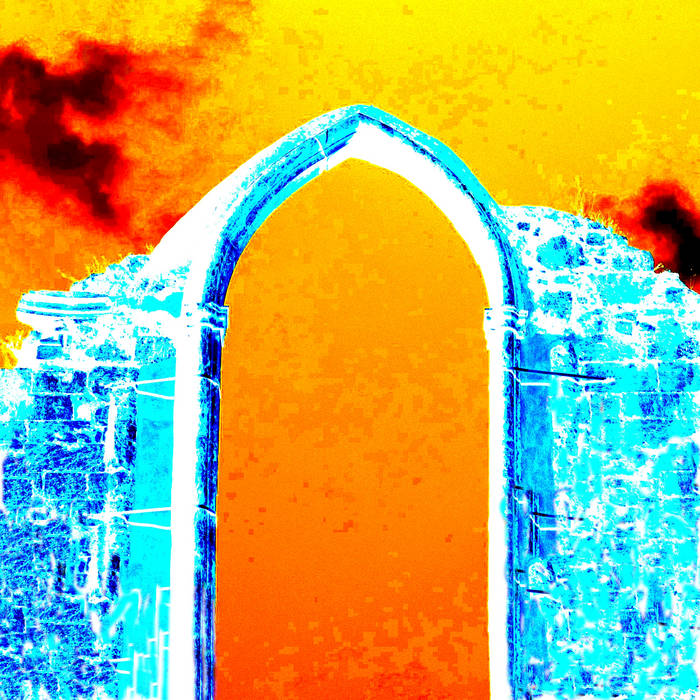
Missa Ultima album cover
Finally, this week, an interesting use of NVDA, by a musician. Ádám Márton Horváth contacted us recently to ask about artistic use of NVDA. He has just released a new album, titled Missa Ultima. He describes it as “an experimental mass, with an apocalyptic topic and feeling, imagining the last day on Earth”. In creating the vocal part of the musical mass, Ádám used NVDA. He then transformed it, using effects and distorting it into the musical tracks. The final result evokes the feeling that these voices are singing in their own way.
Missa Ultima is now available on Ádám’s Bandcamp page.
Have you used NVDA in an interesting way? Or has NVDA benefitted you during the pandemic? Have you tried the latest Beta of NVDA 2020.3? Either way, please Let Us Know!
-
NVDA 2020.3beta2 Available for Testing
Beta2 of NVDA 2020.3 is now available for download and testing. For anyone who is interested in trying out what the next version of NVDA has to offer before it is officially released, we welcome you to download the beta and provide feedback.
Changes from Beta1:
- Updated translations for many languages.
- Small corrections to the changes file.
- Ensure that ‘Microsoft Sound Mapper’ entry under output devices is translated.
- Handy Tech Active Braille with joystick is now supported.
- Certain SAPI5 voices (such as Ivona) no longer skip speech.
NVDA 2020.3 includes several large improvements to stability and performance, particularly in Microsoft Office applications. There are new settings to toggle touchscreen support and graphics reporting. The existence of marked (highlighted) content can be reported in browsers, and there are new German braille tables.
- Download NVDA 2020.3beta2
- What’s new in this release of NVDA
- Please report any issues on GitHub.
-
NVDA 2020.3beta1 Available for Testing
Beta1 of NVDA 2020.3 is now available for download and testing. For anyone who is interested in trying out what the next version of NVDA has to offer before it is officially released, we welcome you to download the beta and provide feedback.
NVDA 2020.3 includes several large improvements to stability and performance, particularly in Microsoft Office applications. There are new settings to toggle touchscreen support and graphics reporting. The existence of marked (highlighted) content can be reported in browsers, and there are new German braille tables.
- Download NVDA 2020.3beta1
- What’s new in this release of NVDA
- Please report any issues on GitHub.
-
In-Process 7th September 2020
Well we made it to Spring down here in the southern hemisphere! And welcome to Autumn, or Fall, you those of you up North of the equator. For those who start seasons at the equinox rather than the 1st of the month, you’ve still got until the 22nd.
NVDACon
The NVDACon committee are currently busy planning for NVDACon 2020. If you’re interested in presenting at NVDACon, it’s a great time to start thinking about what you might like to share. If you haven’t been to NVDACon before, find out all about it at The NVDACon site. On the site, you can also listen to previous conferences.
Speaking of previous years, here’s a way you can help NVDACon with no public speaking involved. One of the organisers, Derek, is uploading all the previous conferences to YouTube. To make them accessible to all, the plan is to use YouTube’s autocaptioning feature to get started. He is then looking for volunteers to go through and correct any errors in the autocaptioning. If you are interested in helping, please do Email the NVDACon organising committee.
Accessible Graphs

We recently encountered a new accessible graphs project. The output includes audio cues as well as spoken information while navigating. The project is available to anyone to incorporate into their work.
The output while navigating includes audio cues, spoken information and a “tactile image” drawn on a braille display (though no knowledge of braille is needed).
Read more on the Accessible Graphs Project Homepage.
Try their Accessible Stocks and Currencies Demo.
You can also Incorporate Accessible Graphs Python Code directly into your own work.
Accessible Space Station RPG Zine

I like to browse the crowdfunding site Kickstarter, and every now and then I come across one with an accessibility angle. This one is a role playing game (RPG), so rather than moving around a board or dealing cards, each player takes the role of a character (on a space station, in this case). Players then decide what actions they want to take, all of which helps affect the way the game progresses. This game also has a solo mode. Like many other RPGs, it comes as an electronic download. While there shouldn’t be any reason such files aren’t accessible, we all know that isn’t always the case. This particular author has put in effort to ensure that the files are screen reader accessible, and is also providing a version optimised for those with dyslexia or low vision. So I thought it was worth a shout out for that. The campaign is in its last 48 hours though so you’ll need to get in quick if you are interested.
Read more on the Orbital Kickstarter Campaign Page.
Making software accessible
I often get asked about making NVDA work with a piece of software. Sometimes there might be something we can do to improve things within NVDA itself. Most of the work of making software accessible is best done by the developer of the software itself. Almost everything involved is simply good software design. These improvements benefit all users of the software, not only screen reader users. It is less work to fix the original software than to have the screen reader try to work around problems. As well as that, improving the original software makes it accessible to all users, not only NVDA users.
There are two parts to making software accessible to screen reader users. One is being able to get around with the keyboard, and the other is having the right information reported.
For keyboard navigation, it is important to have controls in a logical order. At its simplest, this might be when a user moves around with TAB or the ARROWS. Where useful, controls should have keyboard shortcuts or accelerator keys. For instance, consider video call software. It is much more efficient having a shortcut key to answer a call than needing to tab 20 times to get to the answer button.
Most screen reader users don’t use the mouse. Anything which ONLY works with mouse is going to be problematic. A lot of standard controls already work fine with both keyboard and mouse. You can press TAB to move a standard button and press ENTER to activate it. If a shortcut key has been defined, you can press that to activate the button from anywhere on that screen. Many controls have a letter underlined to show that you can press alt and that letter. In a save dialog, for instance, the “Save” button has the “S” underlined. With such a dialog open, you can press alt+s to activate that save button.
With controls such as buttons and edit boxes, it is best to use an existing standard control than create a new one. Pre-defined controls have things like labels, tab control and screen reader accessibility built-in. If you make a new thing you want to act like a button, you can make it accessible, it just tends to be more work. The same is true for combo boxes, edit boxes, checkboxes and so on.
A control with an attached text label, such as a standard checkbox, tells a screen reader all about itself. When creating a custom check box, a lot of this information may need to be setup by hand. This includes what it is (a checkbox), what it is for (the text in the label) and its state (checked or unchecked). Most environments offer properties for controls, such as a “label”, “name” or “description”. Ensure this field is descriptive will make it usable for screen reader users.
NVDA is free for anyone to use. We are quite happy for developers to download it and test it with their programs. Try to navigate your app and use the features of it with the keyboard. NVDA should read enough to tell you where you are at any point. NVDA’s tools menu has a “Speech Viewer” which displays in text what NVDA reads aloud. This can be very useful for anyone unfamiliar with Text-To-Speech (TTS) voices.
That’s all for this week. Stay safe, and we’ll be back again soon!
-
In-Process 20th August 2020
It’s the 20th of August, which is the 232nd day of the year. Based on how 2020 has gone so far, I calculate there are now only 3 aeons left until the end of the year! So, let’s get right on with some news which is more positive:
Our first Ecuadorian Expert
Last week we published a story on Carlos Esteban Martínez Macías. Carlos is our first NVDA Certified Expert in Ecuador, and, at 15, one of our youngest! The story has received a lot of positive comments and conversation. We wanted to highlight it here for those who haven’t yet had the chance to read it. Indeed, we would call him, Carlos, an ‘Ace’ of Technology in Ecuador.
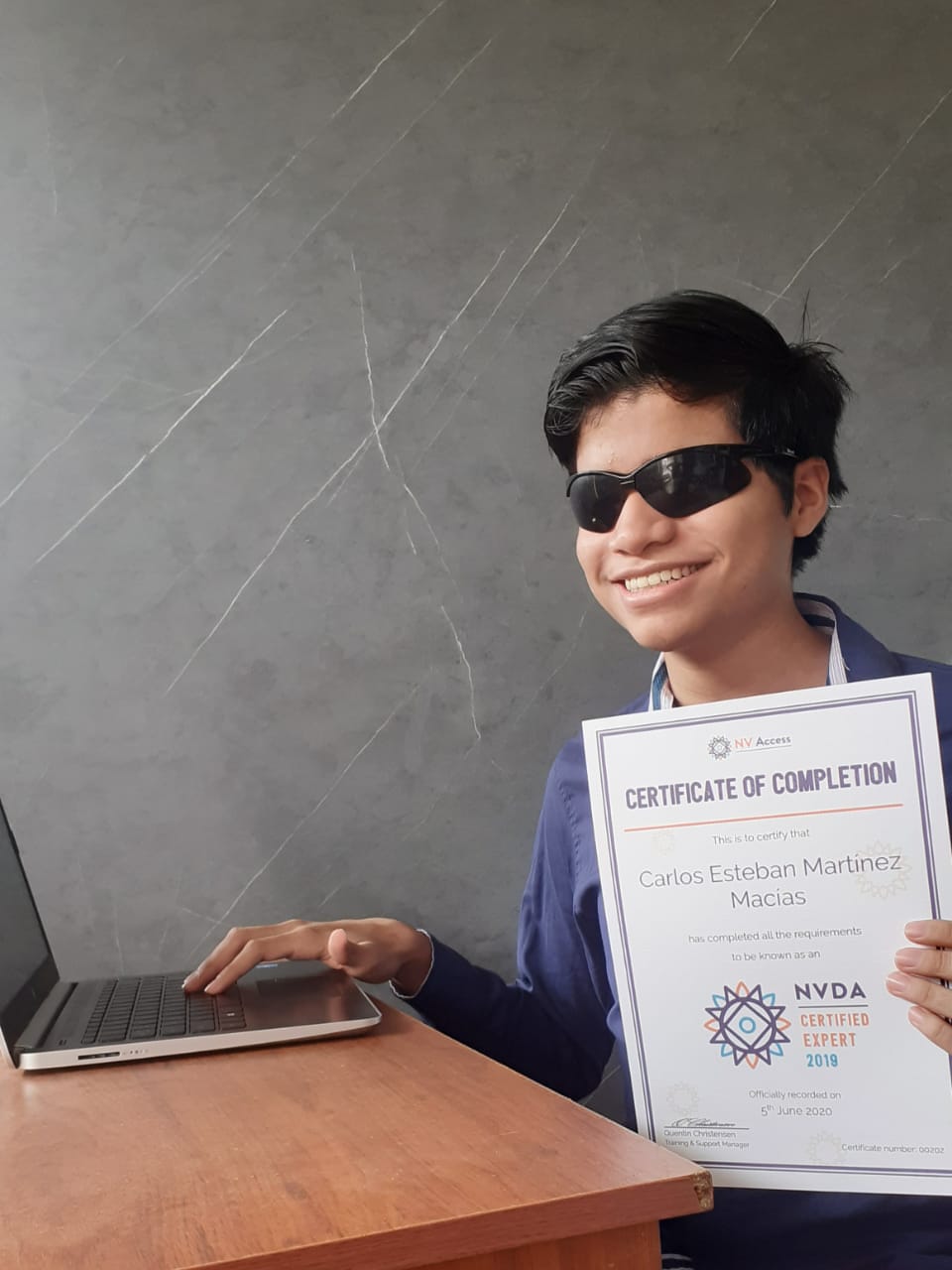
Carlos Esteban Martínez Macías holding NVDA Certified Expert Certificate and with hand on PC keyboard
If you’re not familiar with the NVDA Certified Expert program, it’s a great way to demonstrate your proficiency with the World’s Favourite Screenreader. The exam itself is challenging, but free for anyone to sit. Once you pass, and want to be recognised as an NVDA Certified Expert, the cost is $100 AUD. That gets you a certificate you can print, and public listing on our NVDA Certified Experts list. Importantly, your support also helps keep NVDA completely free for anyone in the world who needs it.
CSUN 2020 Going Virtual
One of the biggest public events we generally do each year is the CSUN Assistive Technology Conference. Held in California, CSUN is one of the world’s largest assistive technology conferences. This year, unfortunately, we weren’t able to attend because of Covid-19. To ensure everyone can attend next year, CSUN have announced the 2021 CSUN Conference is Going Virtual. We look forward to being able to attend again!
After reading the 2021 CSUN Conference Announcement, you can also follow the #CSUNATC21 Hashtag on Twitter to join in the conversation.
NV Access Now Hiring
A reminder that NV Access is seeking to appoint a Full-Time Software Engineer to join our small team. Your work will focus on improving our NVDA screen reading software and related online infrastructure, including feature implementation and bug fixing. You must be an Australian Resident (for tax purposes). We covered some questions on the position in In-Process, 6th August 2020. Go to the NV Access Seeking Software Engineer Job Advertisement for all the details and to apply.
OneCore Improvements
Lately, we’ve been highlighting new features in NVDA 2020.2. If you haven’t yet updated, please do read the full NVDA 2020.2 Release Notes. One new feature is an improvement in performance when using Windows OneCore Voices. Often called OneCore, these voices are the default synthesizer in Windows 10. OneCore has improvements in both performance and clarity over the older SAPI5 voices. If you haven’t tried OneCore in awhile, it is worth another look.
Earlier this year, we added a Rate Boost option to NVDA (in NVDA 2019.3). We highlighted the features of that option in a Video Premiered in In-Process 6th March 2020.
To set your synthesizer, press NVDA+control+s to open the synthesizer dialog. Use the arrow keys to select a synthesizer, and press enter to keep the change and close the dialog.
Speaking of speech, let’s look at a couple of other NVDA voice settings you might not have tried recently.
Synth Settings Ring
The most common voice options for the current synth can be set from the Synth Settings Ring. There is a demonstration of this in the Video on Rate Boost. The keys are slightly different between Desktop and Laptop keyboard layout. I’ll start with the Desktop keyboard layout keys. To move to the next setting in the Synth settings ring, press NVDA+control+right arrow. To move to the previous setting, press NVDA+control+left arrow. Press NVDA+control+up arrow to increase the value of the current setting. Press NVDA+control+down arrow to decrease the value of the current setting. Using Laptop keyboard layout, add shift to those keystrokes. Press NVDA+control+shift+right arrow to move to the next setting, for instance.
When changing to a new synthesizer, this is a great way to get a feel for what options works best for you. If you make a change and don’t like it, or can’t understand the voice, DO NOT QUIT NVDA! Press NVDA+control+r to reset NVDA to the saved settings. Unless you saved the settings specifically, this will revert any unsaved changes. NVDA’s default option is to save changes to settings on exit. So, exiting NVDA when it isn’t working correctly will actually save those changes.
Audio ducking
Audio Ducking is an option which lowers the volume of all other sounds on the computer, to make it easier to hear NVDA. This option can be set so that other sounds “Duck when outputting speech and sounds”. That lowers the sound from other programs only while NVDA is actually speaking. You can set NVDA to “Duck always”, which lowers the volume of everything else whenever NVDA is running at all. The default option is “off” – so NVDA does not adjust the volume of other programs.
You can change between these three settings at any time with NVDA+shift+d. Alternatively, the audio ducking option is available on the Synthesizer Dialog. Note that audio ducking is only available when NVDA is installed, and only on Windows 8 or 10.
Eloquence and Other Synthesizers
NVDA uses OneCore by default on Windows 10, and also comes with eSpeak-NG. If you can’t get either of those just to your liking, remember to check out our Extra Voices page. We have links to many third party synthesizers. Code Factory’s Eloquence and Vocalizer bundle is popular with those coming from other screen readers. Acapela, Nuance Vocalizer, Infovox4 and Next Up’s Ivona are popular with those who want something different. There are also synthesizers designed for specific languages. These include Russian, Mongolian, and south Asian languages. If you know of a synthesizer we haven’t listed, please do Let Us Know.
That’s all for this week, stay safe and well everyone!
-
Carlos, an ‘Ace’ of Technology in Ecuador
At 15 years old, Carlos Esteban Martínez Macías is one of our youngest NVDA Certified Experts. He is also our first NVDA Certified Expert from Ecuador, a South American country between Peru and Colombia.
Carlos shared some of his experiences and plans for the future, and we’re excited to bring them to you, in his own words:
Carlos Esteban Martínez Macías holding his NVDA Certified Expert Certificate and with his hand on PC keyboard
I began to use NVDA in December 2012, when I had 7 years old. The government in Ecuador gave a laptop for the blind people, and these computers had NVDA. Well, I knew that the name is NVDA in March 2013.
I used NVDA all the time in this laptop. In September 2014 this laptop was broke and I return to my first laptop, but now with NVDA. In this time, I don’t use internet and my version of NVDA was 2012.3.1.
In March 2016, I had a new laptop with Windows 10 and my father updated NVDA to the version 2016.1. In the years 2015 and 2016 I read the user guide and the what’s new section. I explored all functions of the NVDA core.
In my opinion, NVDA is the better screen reader for Windows.
In 2017 I began to use internet and began to install add-ons in NVDA. In October and November, I teaches the use of NVDA in a university of my City (Portoviejo), the UTM (Technical University of Manabí, in Spanish “Universidad Técnica de Manabí”) and began to write post in the website of NVDA in Spanish. I like help to the users with the use of this screen reader.
NVDA have a very good community. Some users says that NVDA yet need enhancements in Microsoft Office, for example, and the community of developers work always with enhancements, new features and corrections.
Now, NVDA is my first screen reader. I use NVDA in all moments in my laptop, and other commercial products not are necessary. I am 15 years old and use NVDA in the study with Office, in these moments also use NVDA for the videoconferencing of the virtual class. Also, I use NVDA in my house, and I recommend always this screen readers to all users.
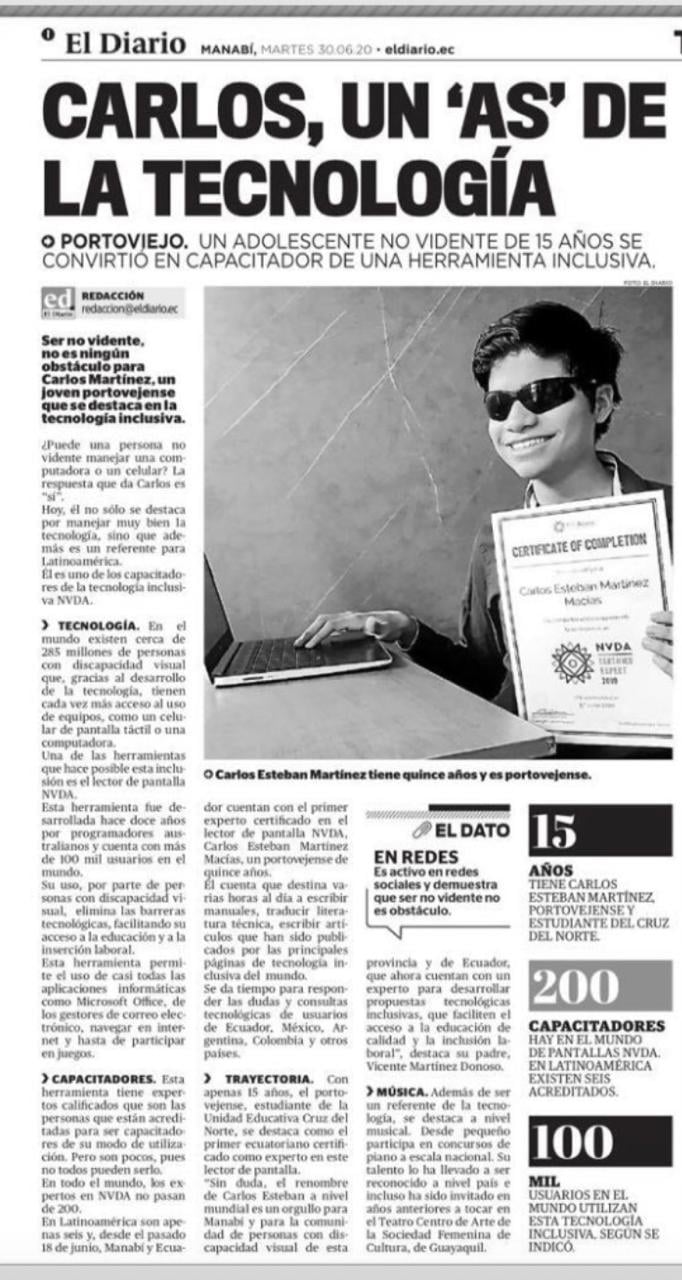
Carlos, un ‘As’ de la Technologia (“Carlos, an ‘Ace’ of Technology” from El Diario Newspaper, 30/06/2020
My knowledge about NVDA led me pass the exam NVDA certified expert, and 17/06/2020, I received my certificate.
I am the first Ecuadorian that have the certification of NVDA expert. Thanks to NV Access!
Well, after of the school I go to study a career related to music, and also study computing. My objective is to help with accessibility consulting.
Thank you Carlos for sharing your inspirational story!
Carlos is a regular contributor to the Spanish NVDA site, Spanish Mailing List and the English NVDA mailing list. For Spanish speakers, Carlos can be heard here talking about the use of web applications with NVDA, and in particular Gmail:
If all that is not enough, Carlos is also an accomplished pianist. He has been recognised as one of the better classical pianists in Ecuador. So, to finish, here is a video from Facebook of Carlos Esteban Martínez Macías playing Flight of the Bumblebee.