It’s a busy and exciting time – it’s release time! Let’s dive in and see what’s new:
NVDA 2026.2
NVDA 2026.2 has been released! This release includes a new built-in Magnifier feature, improvements to touch gestures and navigation, and expanded speech and braille capabilities.
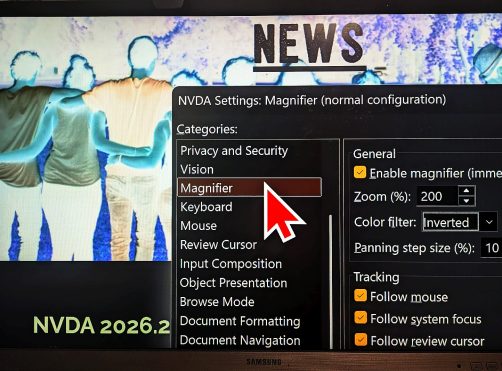
The Magnifier provides zoom and color filtering options to assist users with visual impairments. The Magnifier currently only supports full screen mode, with docked modes planned in a future release. Touch support has been significantly expanded with new pinch gestures and touch-based browse mode navigation for web content. You can now navigate between links, headings, form fields, and other elements using touch flicks.
Speech features have been enhanced with support for custom speech dictionaries that can be provided by add-ons and new dictionary entry types for more granular control. A new voice setting for OneCore voices was added to control pauses after punctuation. A new command allows repeating the last spoken information, with the ability to display it in a browsable message. The default gesture to repeat the last spoken information is NVDA+x, which can be changed in the Input Gestures dialog.
The braille display can now automatically scroll, and DotPad devices support multi-button combinations. The default gesture to toggle automatic scroll is NVDA+alt+k.
Liblouis has been updated with new Italian and Estonian braille tables. When resetting NVDA to factory defaults, an Undo button is now available to restore the previous configuration.
Download the new version from the NVDA 2026.2 release post (or by checking for updates from within NVDA).
As well as the article below, and a new extensive section on the magnifier in the User Guide, our “Basic Training for NVDA” module has been updated with a number of updates. Of particular interest is a new section on the magnifier, there is also a topic covering reading the last spoken information and other new and improved content. These new updates are currently only available in the electronic text version. You can purchase Basic Training for NVDA from our shop. If you have already purchased the module, you can download the new version with the Magnifier section from the downloads page after logging into your NV Access account.
Magnifier
We are very excited to incorporate a magnifier into NVDA for the first time. We have had a lot of comments from users who are excited for this feature, and we’ve had some questions too, so let’s cover off some of the things it can and cannot do, and why it is a useful addition to NVDA:
First Release
Firstly, it’s worth highlighting that this is the first release of NVDA with a magnifier and so the features will improve over time. We try to ship NVDA features incrementally, keeping the initial design scope small and allowing for early user feedback. This allows us to grow the magnifier in response to user reaction. Currently NVDA only works as a full-screen magnifier. We plan to extend the options in future releases. Adding windowed / docked modes is a high priority once bugs are addressed and the full-screen mode is more polished.What CAN the magnifier do?
The magnifier has most of the features you might expect from such a feature:- You can zoom in and out (from 1x up to 50x)
- The view will follow the mouse, keyboard focus, browse mode focus and NVDA navigator object and review cursor – user selectable
- You can pan the view with the keyboard, in configurable increments, or jump to the edges of the screen
- You can adjust the colours (normal, inverted or greyscale)
- You can choose how objects are tracked (Centred or relative to their position on screen)
- You can configure the keystrokes for the various functions
- There is a keystroke to briefly zoom out and show an overview of the screen
We have made a short demo of the magnification feature on our YouTube channel.
Should I change magnifiers?
Particularly if you currently use another magnification solution, we very much encourage you to try out the NVDA magnifier. We are interested in your feedback, and particularly where you would like to see our feature improve.If you already use Windows magnifier or another program, you can keep using it and it will continue to work with NVDA’s speech functions. Just as we don’t recommend having two screen readers running at once, we also wouldn’t recommend having NVDA’s magnifier AND another magnifier running at the same time.
If you do currently use Windows Magnifier, some of the reasons you may consider NVDA’s magnifier:
If you use Windows magnifier in docked or lens mode, or some of the other features which haven’t yet made it into the NVDA magnifier in NVDA 2026.2, then you may wish to stay with Windows magnifier for now – but we do encourage you to try out the NVDA magnifier and let us know what you think.
A new Beta already?
Before we even got this edition of In-Process finished, to tell you all about 2026.2…. we ALREADY have a new beta? Of NVDA 2026.3? Yep! And I’m not going to talk about that yet – if you want to check it out, please head to the beta release announcement. What I did want to briefly mention, was how we came to have a new beta out, when the paint isn’t even dry on NVDA 2026.2?
Great question! And it comes down to how we develop software. Both our internal developers, and the community are constantly working on improving features, fixing bugs, and adding new things into NVDA. As a new piece of code gets incorporated into NVDA, it goes into an “Alpha” build – an early pre-release build with whatever has been changed recently. This lets our developers and our most dedicated testers try it out and give feedback. These come out almost daily (and sometimes several in one day). Because of the quick turnaround, we don’t share them on social media or here on the blog, but if you’d like to try them out, alpha builds are publicly available from the snapshots page. Be aware that they may not be as polished as the stable releases – though the process to test them out is identical.
So, generally a week after a stable release, we collate all the things which have been in alpha for at least a couple of weeks, and put them together into a “beta” release of the next version. While we may still have some features we are working on for later betas, as well any regressions or major issues discovered from the previous release, we can turn much of our development attention on towards the NEXT release.
So, if you ever find an issue with NVDA, the sooner you let us know, the sooner we can prioritise it and work on a fix as needed.
Resetting to Factory Defaults
One of the perhaps less glamourous updates in NVDA 2026.2 is to a feature you hopefully don’t ever need to use.
“When resetting NVDA to factory defaults, an Undo button is now available to restore the previous configuration”
We’ve covered resetting NVDA to factory defaults previously, though it is worth being aware of. While something you hopefully don’t need, if you ever DO need it, it’s good to know it exists. With this new change, if you reset NVDA to factory defaults, a dialog appears advising “Your configuration has been reset to factory defaults. Choose OK to keep factory defaults, or Undo to restore your previous configuration”. This could be useful just in case you ever inadvertently activate the wrong item on the NVDA menu for instance, and may hopefully save you from needing go through setting up NVDA to your preferences again.
That’s all for this week, do update to NVDA 2026.2 if you haven’t already, and we’d love to hear your feedback on the new features – the magnifier of course, but also the other updates.