Let’s talk about NVDA 2026.3!
- NVDA 2026.3 Beta 2
- Changes to the Changes
- Our International Communities
- Copying last spoken text
- Talking about NVDA
- Show Screen Overview
NVDA 2026.3 Beta 2
As mentioned last edition, we released NVDA 2026.2 and dived straight into the beta period for NVDA 2026.3. Firstly, do go back and read all about NVDA 2026.2 if needed, but otherwise, let’s dive into what is coming up in NVDA 2026.3:
Highlights
This release includes significant performance improvements, improvements to NVDA’s dialogs, and expanded touch screen input.
Several performance improvements have been made to reduce lag and improve responsiveness. NVDA now fetches and caches more information about controls in the background, improving performance in controls such as combo boxes and File Explorer. NVDA no longer causes File Explorer or other applications to crash when NVDA is exited or restarted. NVDA now recovers more quickly when an application stops responding, and will no longer freeze or flood the log with errors from unresponsive applications. In live text regions, such as terminals, NVDA no longer freezes when substantial amounts of text are dumped to the screen.
Context menus and keyboard shortcuts have been added to the Configuration Profiles, Input Gestures, and Speech Dictionaries dialogs, making these dialogs easier to use with the keyboard. It is also now possible to change an existing gesture directly in the Input Gestures dialog. The dialog used to present browsable messages has been modernized and now better supports resizing, maximizing, and minimizing.
Touch screen input has been significantly expanded. Sequential two-flick gestures now combine two flicks in quick succession into a single gesture, greatly increasing the number of bindable touch gestures. Edge gestures are also now supported, allowing gestures that begin within 15 mm of any screen edge to be bound independently from the same gesture performed in the centre of the screen.
A new unassigned command has been added to move the mouse cursor to the centre of the magnified view. Windows OCR can now be used while the Screen Curtain or NVDA’s built-in Magnifier is active.
Liblouis has been updated with new Elfdalian, Sami, Maori, New Zealand Unified English Braille, and Haitian Creole braille tables, a Norwegian table for Spanish text, and additional Swedish 6 and 8 dot variants. eSpeak NG has been updated with added support for Ligurian and Abkhaz.
Changes introduced in Beta 2:
- Updates to translations
- Fix bug with Magnifier’s “Show screen overview” feature when using relative tracking mode
- Updated eSpeak
- In browse mode, alt+upArrow and alt+downArrow now collapse or expand combo boxes in more situations
- Prevent flashing from shifting magnifier colour filters to reduce seizure risk
- Update to the Chinese Word Segmentation library cppjieba to fix startup crashes from Chinese paths
Changes to the Changes
If you’ve looked at the changes document for the NVDA 2026.3 betas, you might have noticed a change to the formatting. Or rather, some new formatting. Instead of having a list of features, and then breaking that up into sub-lists of Braille features and Touch Screen features and Browse mode features, we’ve made them headings:
- “What’s new in NVDA” is at the top of the document and is a heading level 1 – press shift+1 to jump back to that from anywhere (or control+home since it’s at the top of the document).
- The version of NVDA, “2026.3”, “2026.2” etc, is a heading level 2. Press 2 to jump to the next older version of NVDA, or shift+2 to jump back to the start of the current version, or next newest version of NVDA.
- “New features”, “Changes”, “Bug Fixes”, “Changes for Developers”, “Security fixes”, and “Important notes” are all Heading level 3.
- sub-headings in the section, new features, changes, etc, are heading level 4. In the “New Features” for NVDA 2026.3 for instance, press 4 to jump to “Braille”, “Touch Screen Input”, “Browse Mode”, which are all sections of new features for this version.
If you are used to simply arrowing down through the list and reading each feature, that still works as it did. Or if you press i to jump between list items, that will still work, although you will miss the heading. If you navigate like that and hear “List with x items” and you’re not sure what the list is, press shift+h to jump to the previous heading (at any level) and it will move to the heading just before the list. As something new, we’re interested in what you think – good or bad. It’s the first time we’ve changed the formatting in awhile (though not the first at all, though the last change will not have been as noticeable to all our users).
Our International Communities
While we’ve been sprucing things up, we recently gave the “Connect with the NVDA Community” page a once over. Firstly, we made sure all the links worked and followed up those with problems. As a result of that, we’ve removed a couple in consultation with their owners (Finnish and Swedish particularly) and added a couple more we had found along the way (Hi to our friends from the Brazilian Portuguese site!)
We also took the opportunity to add headings at H3 for each language, so you can jump or link to the Romanian resources directly now.
We’re always interested in adding new resources to the list. Are you aware of any other groups we’re not aware of? Particularly in languages not yet listed there. Please get in touch if you know of any.
Copying last spoken text
One of the popular features in NVDA 2026.2 was the addition of NVDA+x to repeat the last spoken information. You could press that twice quickly to have the information displayed in a dialog so you could read it with more granular control. If what you want to do is copy the information, while you can do it from that dialog, we’ve added a new command to NVDA 2026.3 to make it even easier. Press NVDA+control+x to copy the last spoken information directly to the clipboard. Thank you to community contributor Cary for his work on this feature!
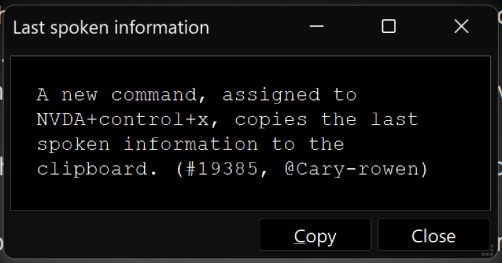
(A screenshot of the original NVDA+x double press dialog, showing the new feature bullet point for the NVDA+control+x command. Note the dialog has white text on black, because I had the magnifier running with colours inverted when I took the screenshot.)
Talking about NVDA
We love talking about NVDA! I often forget to mention interviews here, but we’ve recently done a couple I thought I’d share:
Access Point
Firstly, our “Access Point” collaboration with World Services for the Blind continues with the second in our podcast series, on everything new in NVDA 2026.2.Tek Talk
Next, Training & Support Manager Quentin was on Tek Talk, again covering everything new with NVDA.PHD opportunity
And, on a slightly different topic NOT involving us talking – but if YOU love talking about NVDA, accessibility and navigation, Monash University, in Australia, are offering a paid PhD Scholarship in Communication and Navigation for Blind and Low Vision People.
Monash are looking for a linguist or researcher with a related background to investigate how Blind and Low Vision people navigate the world using technology.
The project focuses on video ethnography, multimodal communication, and users’ experiences of navigation technology, with opportunities to collaborate with researchers in assistive technology and AI.
This is open to both Australians and International applicants It’s also part of the Monash Assistive Technology and Society Centre (MATS) and Monash AI Institute so the successful applicant will have lots of opportunity to collaborate with technologists about building better navigational tech going forward.
Do refer to the position description at Monash for all the details.
Show Screen Overview
One of the features of the magnifier we didn’t mention much last time is the Show Entire Screen Overview. Since one of the fixes in the latest NVDA 2026.3 beta is a fix involving this feature, I thought it was worth a mention. So firstly, the fix is that it WILL now work if using relative tracking mode – so if you prefer that magnifier tracking mode, you might want to upgrade before trying it out.
With the magnifier running, press NVDA+shift+L to “Show entire screen”. This temporarily zooms out to show the whole screen (as if the magnifier wasn’t running). After a couple of seconds without the mouse moving, the view zooms back in again.
Because the view smoothly zooms out and then back in again, it makes it easier to tell where the zoomed area is in relation to the whole screen. By waiting for mouse movement to stop, it allows a user to explore the unmagnified view and then smoothly zooms in to where the focus currently is.
If you wish to instantly enable or disable the magnifier, NVDA+shift+w will do this immediately, without zoom out (and then only magnifies again once you press NVDA+shift+w again).
Another difference is that pressing NVDA+shift+L zooms out but leaves any colour filtering enabled. If you wish to quickly zoom out and remove colour filtering, then you may find turning off the magnifier (NVDA+shift+w) works better.
And a related tip – if you don’t want magnification BUT do want colour filtering, you can enable the magnifier, enable colour filtering (NVDA+shift+i) and then zoom out to 1x (NVDA+shift+minus).
That’s all for this week. A little longer than it sometimes is, but there we covered quite a few keystrokes – did you learn any new ones? Surely at least NVDA+control+x? Do try out the latest 2026.3 beta, and some of those commands. Do please keep giving feedback on the changes and improvements. Also please do share any other international communities we aren’t yet aware of.