We’re getting ever closer to NVDA 2026.2 and we hit a new milestone towards that this week. Let’s have a look at what’s in this week’s blog and then dive in:
NVDA 2026.2 Beta 10
NVDA 2026.2 is nearly here! This week we’re up to NVDA 2026.2 Beta 10. We are now in the “String freeze” – that is, we don’t make any changes for a couple of weeks to give the translators time to update their work before the stable release. So, the next step should be a release candidate in a couple of weeks. Then, all going to plan, the final release a week or so after that. Let’s have a look at the updates from the betas since the last In-Process:
Changes introduced in NVDA 2026.2 Beta 10:
- Updates to translations
- Fixed touchscreen, touchpad and mouse input for magnifier
- Added gestures for braille automatic scroll commands
- Removed True Center Mode and Border Mode from the magnifier due to design bugs
- Remove non-functional “Custom” option from the math decimal separator setting
Changes introduced in Beta 9:
- Updates to translations
- Update Braille Reading and Automatic Scroll Rate in User Guide
- Moving by sentence in Word (alt+downArrow/alt+upArrow) at the start/end of a document now stops there instead of wrapping around to the opposite end
- Changed quick access keys for magnifier settings to ensure they are unique
- Updates to translations
- Improve magnifier behaviour when using higher DPI scaling
- Fix magnifier from interfering with opening dictionary dialogs
- Improve the handling of failing to activate the magnifier
- Block touch screen input when using the magnifier where possible, as it is not supported yet
Getting Help
We try to ensure there are plenty of ways for NVDA users to get help. Since you’re reading this blog post, I HOPE you would consider our blog one of the ways you learn more about NVDA. We have training material and telephone support in our shop, and they are both very popular options (particularly combined in the NVDA Productivity Bundle). But what about in NVDA itself? There are a couple of ways you can get help while you are using NVDA:
- The User Guide. (And particularly the quick start guide for new users). The user guide contains information on all of the features of NVDA. It is an excellent resource to refer back to after completing “Basic Training for NVDA” and learning about all the features. Press NVDA+n to open the NVDA menu, then h for the help submenu, which starts on the User Guide
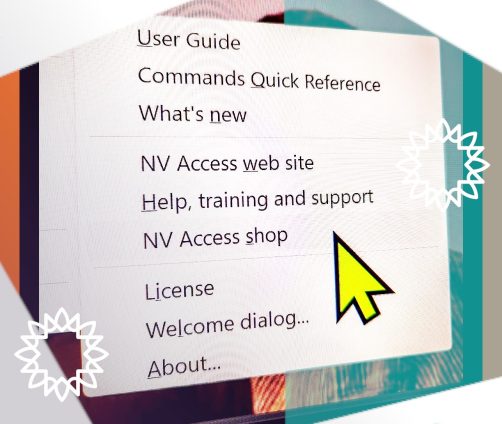
- The other items in the “Help” menu for information including what is new, links to the NV Access website, help and training, and the “Commands quick reference” (the tables of keystrokes and gestures extracted from the user guide).
- Context sensitive help. From within any dialog in NVDA, press f1 to open the user guide to the topic on the current control.
- Input Help. Press NVDA+1 (the 1 in the number row, above Q). In this mode, NVDA will report any key that you press. If you press an NVDA command (such as NVDA+tab), it will report that. Keys pressed and commands are not executed. This can be a great way of exploring a new keyboard layout. Press NVDA+1 again to turn input help off.
- Report keystroke: While we’re on help for individual keys, the Report Keystroke command tells you the keystroke to access the currently focussed control. Press shift+numpad 2 (laptop: NVDA+control+shift+dot) to report the keystroke for the current control.
WebAIM Screen Reader User Survey
The WebAIM screen reader user’s survey is on again. This is the 11th edition of the survey, which is the largest survey we are aware of which collects data on screen reader usage and trends. We encourage everyone to complete it in order to give the community as accurate a picture of how you use a screen reader as possible!
The one question I’d like to highlight is “Screen reader satisfaction”. Please do answer all the questions honestly, including that one – but if there is anything which makes you think “I’m not 100% satisfied with NVDA” – please let us know! You can create an issue on GitHub (and we’ve previously included GitHub instructions here in In-Process, you can email us, reach us in the official NVDA mailing list, or on social media.
Thanks Acapela
We are very grateful to all our donors. They are one of the main reasons we are able to continue to provide NVDA for free to anyone who can use it anywhere in the world.
This week, we’d like to give a shoutout to Acapela who make the popular Acapela TTS for NVDA. If you are interested in trying Acapela out, they offer an evaluation version which is fully functional and provides access to all voices and all functionalities for 15 days.
Acapela, along with many other options, are listed on our Extra Voices page.
And, if you would like to donate and help keep NVDA free for everyone, we would welcome your support. Please visit our donation page for PayPal or bank donation options. You can also become a GitHub Sponsor.
Moving by Sentence
One of the fixes in the recent NVDA 2026.2 betas is a fix to moving by sentences in Microsoft Word. In many places in Microsoft Office, you can press alt+down arrow to move to the next sentence and alt+up arrow to move to the previous sentence. While this is a feature of Office, if you appreciate moving by sentence and would like to be able to use it everywhere, try out the “Sentence Nav” add-on in the add-on store.
Want more ways of getting around? How about:
- Word (control+left arrow and control+right arrow)
- Paragraph (control+up arrow and control+down arrow OR shift+p and p)
- And as an added bonus for paragraph navigation, here’s a related feature: Paragraph style, which lets you change how NVDA moves when moving by paragraph
- Single letter navigation
That’s all for this week. Next time around we’ll be close to the final 2026.2 release, so for now, do try out the latest beta and be sure to report any issues. Also don’t forget to do the WebAIM Screen Reader User Survey.