It’s a busy time for the NV Access team – new releases, lots of info, and we’re off to Germany next week!
- NVDA 2026.1.1
- Running on the sign in screen
- NV Access at Sight City
- Microsoft Outlook with NVDA module update
- Update on ARM Support
- Searching for text
NVDA 2026.1.1
This week we put out a patch release for NVDA to fix a couple of issues. NVDA 2026.1.1 is a patch release to fix security issues. A bug fix is also included for an issue introduced in 2026.1 with how ctrl+f is handled in File Explorer. A change introduced in 2026.1 with how NVDA handles connection issues with Remote Access was removed. One important fix in this release for a lot of users is that Remote Access once again attempts automatic reconnection after a failed initial connection as the controlled computer, rather than failing immediately. This means that headless or otherwise physically inaccessible machines configured to automatically connect at startup will be reachable once the network is available.
Read the full announcement and download the update from the NVDA 2026.1.1 release announcement.
Running on the sign in screen
We have had a couple of reports from people advising that NVDA forgot you wanted it to run on the Windows sign in screen. To fix this, please re-enable the setting:
- Press NVDA+control+g to open NVDA’s general settings
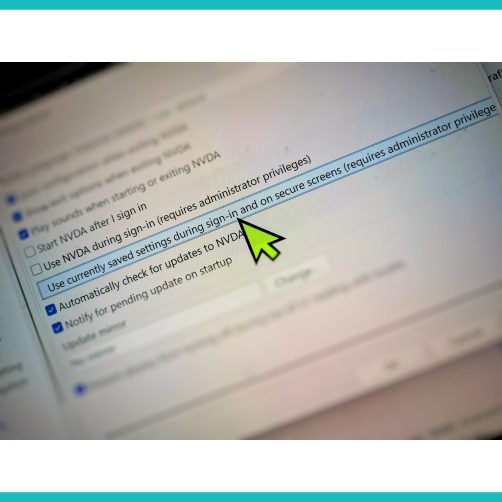
- Press tab until the focus is on “Use currently saved settings during sign-in and on secure screens”
- Press enter to activate that button
- If necessary, select add-ons you wish to use while on secure screens (We recommend as few as possible)
- Acknowledge the User Account Control dialog
NVDA should read on secure screens such as the sign in screen after that.
One change in NVDA 2026.1 is that step 4 above. It is now possible to select which add-ons to copy for use during sign-in and on secure screens. When you activate the “Use currently saved settings during sign-in and on secure screens” button, you are prompted for which add-ons you want to copy. Copying add-ons to the system-wide configuration is a serious security risk. We strongly discourage allowing add-ons on secure screens. The option is there for those who have, for instance, a Braille display driver as an add-on, and require this.
NV Access at Sight City
Sight City is coming up from the 27-29th May at Frankfurt, Germany. NV Access will be there! While we aren’t exhibiting, we will be at lots of meetings, and presentations. Sight City is “the world’s largest trade fair for assistive devices and solutions for blind and visually impaired people. Every year, the Kap Europa in Frankfurt am Main transforms into an international hub for innovation, inclusion, and exchange.”
If you’d like to catch up with us there, be sure to get in touch!
Please note, while we are out of the office for the whole week, if you do write to us, we may be a little delayed in replying. (If it’s something time-critical, like wanting to catch up at Sight City, be sure to indicate that in the subject!)
Microsoft Outlook with NVDA module update
We are pleased to announce that we have completed an update of the Microsoft Outlook (Classic) with NVDA training module. This module covers all aspects of using Microsoft Outlook (Classic) with NVDA. This update includes more information on using folders, more on formatting email, and a refresh on all of the keystrokes to bring them up to date with the latest Office 365.
You can purchase the new module from our shop, either: Individually for $32 Australian (+GST if in Australia).
Or as part of the NVDA Productivity Bundle, which includes Basic Training for NVDA, all four of our Microsoft Office modules PLUS telephone support, all at a discount over buying separately.
If you have previously purchased an earlier version of the Microsoft Outlook with NVDA module, we are pleased to confirm that this update is freely available in your NV Access downloads.
We know that there is a lot of interest in a module on the NEW Outlook, and we look forward to bringing you news on this in a future post.
Update on ARM Support
Among the system requirements updates in NVDA 2026.1, we wanted to highlight ARM support. Firstly, what is ARM? Traditionally PCs have used an Intel or AMD x86 processor. They are powerful but also use a lot of power. ARM chips on the other hand, power the majority of mobile phones and tablets. They use much less power for more efficient processing. NVDA 2026.1 has made a couple of changes to ARM support: – NVDA 2026.1 Performance improvements on ARM64 systems – NVDA 2025.3.3 is the last version of NVDA which supports Windows 10 on ARM If you are using Windows 10 (on any hardware, but particularly ARM) and can update to Windows 11, we would strongly recommend it. If you are on the current version of Windows, we would recommend using the latest version of NVDA. You can also find Microsoft’s FAQ on ARM support here. You can find both the latest version of NVDA, and the older 2025.3.3 for Windows 10 ARM machines on the NVDA download page.
Searching for text
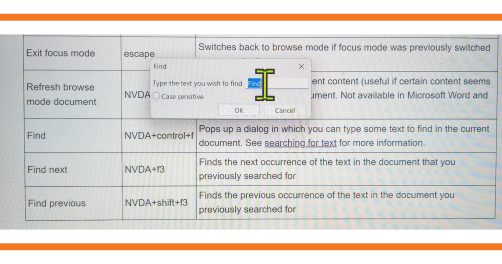
One of the fixes in NVDA 2026.1.1 is when searching in file explorer with control+f. So, I thought I’d have a quick look at searching. In many programs, most programs even, you can search within the program with control+f. In some programs, they may use control+e, (particularly if control+f is used for something else). And in File Explorer, you can use either (If you know why, do please let us know!). On the web, while browsers do implement control+f to find, for technical reasons, this does not work with NVDA. NVDA also implements a find command which works in the current document. When you press NVDA+control+f, it opens a small dialog where you can enter text to search for. There is a “Case sensitive” checkbox which will ONLY match text using the exact same case. So, for a case sensitive search, if you search for “Hello” with a capital “H”, it will match that, but not “hello” with a lowercase “h”. Note that NVDA’s find function works in “Browse” mode. This is the main mode you will likely be in when navigating the web, except when on a form field. If you are in a program such as Word, you will need to ensure you are in Browse mode (NVDA+spacebar) if wanting to use NVDA’s find function. In the case of Word, the native search functions are accessible and can also be used. Once you have done a search, the focus jumps to the next occurrence of the matched text from wherever the focus was. If there are no more occurrences of the text, it will give a message indicating that. To search for the next occurrence, press NVDA+f3. To search for the previous match for the search text, press NVDA+shift+f3. The focus either moves directly to the match and reads that line, or gives a message indicating there are no more matches.
That’s all for this week. We’ll be sure to say hello on social media from Sight City, and we’ll be back with more once we’re back!