Exciting developments for you this week with the launch of the first betas of 2026.2! But first, what else have we got this time around:
NVDA 2026.2 Beta 2
With NVDA 2026.1.1 only just out, we are already up to beta TWO of NVDA 2026.2 available. And it’s another big release! Here are the highlights:
“This release includes a new built-in Magnifier feature, improvements to touch gestures and navigation, and expanded speech and braille capabilities.
The Magnifier provides zoom and color filtering options to assist users with visual impairments. The Magnifier currently only supports fullscreen mode, with docked modes planned in a future release.
Touch support has been significantly expanded with new pinch gestures and touch-based browse mode navigation for web content. You can now navigate between links, headings, form fields, and other elements using touch flicks.
Speech features have been enhanced with support for custom speech dictionaries that can be provided by add-ons and new dictionary entry types for more granular control. A new voice setting for OneCore voices was added to control pauses after punctuation. A new command allows repeating the last spoken information, with the ability to display it in a browsable message. The default gesture to repeat the last spoken information is NVDA+x, which can be changed in the Input Gestures dialog.
The braille display can now automatically scroll and DotPad devices support multi-button combinations.
Liblouis has been updated with new Italian and Estonian braille tables.
When resetting NVDA to factory defaults, an Undo button is now available to restore the previous configuration.”
Be sure to download NVDA 2026.2 Beta 2 and test it out. Remember you can run it as a temporary copy (choose “Continue running” rather than install) to test it without affecting your installed copy. You can also create a portable copy so you can use it more regularly and save settings, again without affecting your installed version. Or you can install it and opt in to the beta / RC channel and get offered all new beta and release candidates as they come out. If you do that, please do have a copy of the previous stable build on hand if needed.
Sight City 2026
We had a fantastic week in Frankfurt at the Sight City conference. We had some really productive meetings and learnt about new technologies and devices. It was helpful to talk to agencies and providers who shared how they assist NVDA users in the workplace. Of note were some of the needs of users with regulations and providing support in Europe. We were able to share with them some of the resources we can provide. These directly meet the needs some organisations had. In most cases, they hadn’t thought to reach out, so talking to them in person was quite valuable.
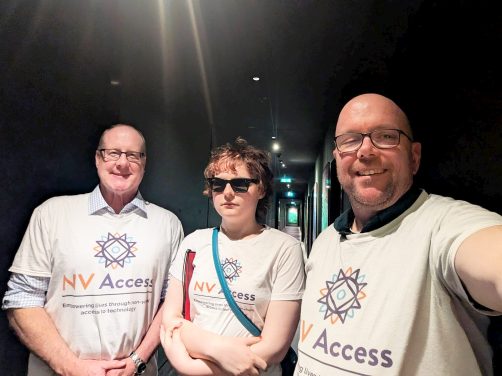
Most rewarding, we spoke to users from Germany, Europe and from even further away. It was so rewarding to hear their experiences and achievements! We spoke with a user from Uzbekistan who shared how life changing access to NVDA was for users in their country. (If you are reading this, please get in touch with us, as we’d love to continue that conversation!)
While we are used to remote working, an event like this does highlight how valuable it is to connect in person. We had conversations with people who may not reach out to us otherwise. We also learnt things we may not find out over email.
While we were in Frankfurt, we did a fascinating walking tour of the new old town and found a tactile map in the tourist bureau (bottom-left of the image below), some tactile coins with braille descriptions in the museum (bottom-right), and had a view of the city from the 42nd floor (not so accessible, but a great view for those with some sight – top).

Repeating last utterance
One new feature coming in NVDA 2026.2 is the ability to repeat the last spoken information. Press NVDA+x to repeat whatever the last thing NVDA read was. Press the command twice to open a browsable window with the text. Browsing the text allows navigating by word or letter or spelling it out. You can also press control+shift+c on that window to copy the information to the clipboard.
This functionality has been available in the Speech History add-on for some time. We know that add-on provides extra functionality which many users want. As noted in the PR to add this functionality, this is a first step. We will look to potentially add the ability to browse other recent messages in future. For now, if you do need that extra functionality, please continue to use the add-on.
OCR
We’ve had a few questions about OCR lately and we’ve added new features to it. While we mentioned refreshable OCR in 2023, the last instructional post was back in 2017. So, I thought it was time to update that and add some extra tips.
OCR updates
If you’ve used NVDA’s OCR features before, let’s start with what we’ve updated since the feature was added in 2017:
- In NVDA 2026.1, “You can now configure NVDA to automatically say all after successfully recognizing content, such as with Windows OCR”
- Also in NVDA 2026.1, the browse mode highlighter now works with OCR results. The highlighter appears around the text in the original image
- Also related to OCR, In NVDA 2025.2, we added unassigned commands. Many NVDA settings categories have keystrokes to open them directly. For instance, NVDA+control+g to open general settings, or NVDA+control+k for keyboard settings. It is now possible to add a keystroke to open the OCR settings page if this is something you would like
- In NVDA 2025.1 we added commands to manually refresh changed OCR results (NVDA+f5) and an unassigned command to periodically refresh OCR results
- In NVDA 2023.3, we added the ability to periodically refresh OCR results. This can be configured in the settings, or via the command NVDA+control+alt+r (added in 2025.1)
- In NVDA 2023.2 we added an unassigned gesture to cycle through the available OCR languages. This can be useful if you need to use NVDA in multiple languages
Dealing with inaccessible content
In talking about NVDA’s OCR features, it is important to note a couple of things. Firstly, screen reader OCR is a last resort to read information which was not made accessible. OCR, or Optical Character Recognition, is the computer guessing at what the text says. It may not always be 100% accurate. If you took a screenshot of this paragraph of text and run OCR over it, you’d probably get a reasonable idea of what it says. But if the text is presented over an image, or using unusual fonts, it can be difficult to recognise. A misspelt word in the middle of a paragraph can be easy to spot (whether it was in the text or an OCR error). It may be harder to confirm things such as the price in a sale listing (which is likely the most important detail). When you receive inaccessible content, there are several things you can do:- The main thing we would encourage you to do, is to reach out to the person who sent it to you. They may not be aware that it is not accessible
- If the document is a PDF file, it can be worth trying several programs. The features in web browser PDF viewers can change without warning. If text cannot be recognised in the file in Adobe Reader, then that is a good indication that it is not accessible
- It is always much easier for the person who created the text to make it accessible. It is much harder for someone else trying to recreate the text later on from an inaccessible file
- One easy way to make accessible PDF files is with Microsoft Word. Firstly, ensure you use proper formatting, such as headings. Next, export from Microsoft Word to PDF
- There are many guides online to help with creating PDF files https://accessibility.build/guides/pdf-accessibility
Recognising text in an image
NVDA’s built in OCR is perfect for recognising text in images, such as memes on social media. To do this:- Navigate to the image (use the arrow keys, or press G)
- Press NVDA+r to recognise text in the image. NVDA will report “Recognising”, then “Done” when it is finished
- If you have configured NVDA to automatically read OCR results, it will do that. Otherwise, press NVDA+down arrow (laptop: NVDA+a) to say all. You can also use the reading and navigation keys to move through the results
If you’d like to test this now, here is an image with text to run OCR on:
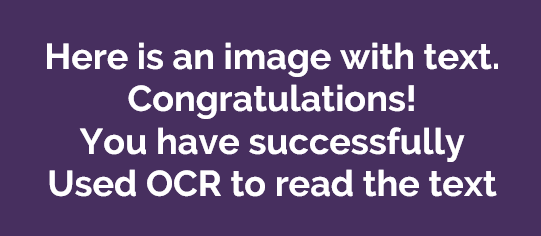
Test image for OCR
Recognising text in an inaccessible PDF
This works in exactly the same way as for recognising text in a single image. There are, however, some important considerations to note:- You need to open the PDF file – simply having focus on the file in File Explorer will not work. There are a number of programs you can read PDF files in. Most browsers have PDF viewers (with varying levels of accessibility). There are also dedicated programs such as Adobe Reader and Foxit PDF reader. If you are unsure which to use, start with Adobe Reader
- OCR will only recognise what is visible on screen. For best results, start with zoom at 100% (usually the default). Setting the zoom too high will result in less being visible on screen. Zooming out too far will result in the text being too small to be read. Often, when zoomed out far enough, only an overview of the shape of each page will be shown with no individual text visible
That’s all for this week. Do let us know what you think of the new features in the 2026.2 beta. Do you have any tips for OCR we missed above? Share them and tag us on social media! Or join in the conversation in the NVDA user group.