Welcome to a new week and a new edition of the blog! There’s a few things inside, starting off with very sad news of the passing of a legend of the community.
- Vale Rui Fontes
- NVDA 2026.2 Beta 7
- Characters per line
- Introducing Access Point
- System Accessibility Repair Tool
Vale Rui Fontes
Last week, we were saddened to receive news of the passing of longtime friend of the NVDA community, and of NV Access, Rui Fontes. Rui was a prominent face of “Tiflotecnia”, the organisation who sell Vocalizer for NVDA. Rui was a very prominent add-on developer. There are 16 current add-ons in the store published by him, including the very popular SysTrayList, ClipSpeak and TesseractOCR being just three, as well as contributing to numerous others. Rui was also very active in the NVDA user group, add-on group and other forums, and very interested in helping people in general, not only with his products. He was a tireless advocate for the community. He will be greatly missed. His family have asked for privacy at this time. Please also refrain from asking about his add-ons. Rest assured, they will continue to work throughout the NVDA 2026.x year cycle, even without any additional updates. No doubt, accommodations will be made for their future long before NVDA 2027.1 comes out, and we will share any additional news as we receive it.
Over the weekend, the community received a message from Rui’s wife and daughters deeply thank all those who expressed their condolences regarding the passing of their beloved one, who will remain eternally in our memories. Be sure to subscribe to the official NVDA users email group, or the add-on group for updates and other community news.
NVDA 2026.2 Beta 7
Once again, we are a couple of betas – three in fact – further along than we were last time the blog came out. Let’s see what’s new in NVDA 2026.2 Beta 7:
Changes introduced in Beta 7:
- Updates to translations
- Fix NVDA prompting to restart after updating, instead of logging off
- Revert SAPI5 bug fix from beta6 which was causing issues loading synthesizers
- Fix reading PDF content in Foxit PDF Editor with browse mode
Changes introduced in Beta 6:
- Updates to translations
- Show the restart dialog after updating from within NVDA, and make sure restarting offers the user the ability to save work in progress
- SAPI5 bug fix: skip over invalid voices rather than causing the entire driver to fail
- SAPI4 32-bit bug fix: support voices that don’t support pitch or rate
- Improve conflict handling between magnifier and screen curtain
- Restore the ability for add-ons to register custom touch modes in availableTouchModes
Changes introduced in Beta 5:
- Updates to translations
- Use math navigation category for one more math script
- Prevent NVDA freeze when brailling math with certain Unicode characters
- Improvements to Magnifier messages and settings names
Do head to the NVDA 2026.2 Beta 7 release announcement and try out the new beta. In fact, work is progressing well and we expect another beta to come out in the next few days.
Characters per line
We were recently asked about the “Maximum Number of Characters on One Line” setting. What does it do? And when might you change it?
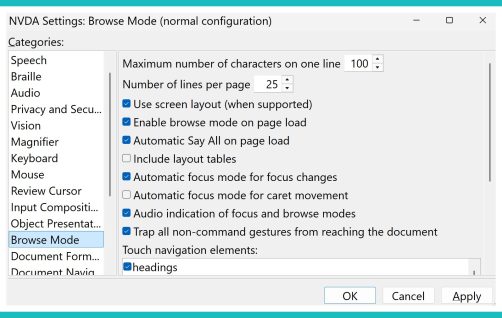 Screenshot of NVDA’s browse mode settings
Ok, firstly, what is it? In a Word document or notepad text, the program exposes how much text is on one line. If you press down arrow, the caret moves to the character directly below. On the web, this isn’t as clearly defined. The size of the window, CSS rules, JavaScript, nearby images, and many other things can affect exactly how much text fits on a line. Because of this, and the way screen readers process web content, the document does not expose exactly where to move when you press down arrow. The way we work around this is to arbitrarily decide how many characters are on a “line”. There is a setting in NVDA’s browse mode settings called “Maximum number of characters on one line”. The default value for this is 100 characters. That is, when you press “down arrow”, the caret moves forward through the text on the web page by 100 characters.
As an example, the first line of the latest beta release announcement, visually, is: “Beta7 of NVDA 2026.2 is now available for download and testing. For” At NVDA’s default 100 max characters per line, pressing down arrow to that line will continue on to read “anyone who is interested in”, before stopping. If you change it to 50 chars, it will stop after “Available for” (it avoids stopping at half words).
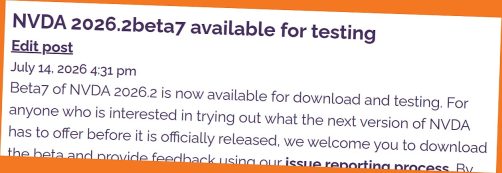 The Beta 7 release announcement, used in the example above
NVDA user James also added: “When you’re not doing a say all and want to press Down Arrow less often, increase it. When you’re not doing a say all and would find it easier to process text in smaller chunks, decrease it.” Fellow NVDA user Pratik offered: “I have it set to maximum most times as well. If I want to read in smaller chunks, I do it with my Braille display. It’s a nice compromise.”
There is a companion setting, “Maximum lines per page” which, you can probably guess, adjusts how many lines the caret moves when you press page up or page down. The default for this is 25 lines.
How do you have these options set? Do continue the conversation on the Mastodon thread, or in the user group.
Introducing Access Point
World Services for the Blind in the United States is one of many organisations around the world who provide training in NVDA. This is a valuable part of the job readiness program they provide. They recently invited us to collaborate with them on a webinar series introducing the new features of NVDA around the time of each release. We are very pleased to share with you, the inaugural “Access Point” webinar, with a focus on NVDA 2026.1. We know many of our regular readers will be very familiar with what was new in NVDA 2026.1, as it has been out for nearly a couple of months now, but if you’d like a refresher, this could be the webinar for you. Starting something new always takes a little time to dial in, so we anticipate having the next version out a lot closer to when the stable NVDA 2026.2 is released.
System Accessibility Repair Tool
We don’t often update features in ways which don’t change how they work. And, when we do, we don’t often highlight it. But let’s make an exception! NVDA has had a tool called the “COM registration fixing tool” for a long time now. We have covered it once before, and at the time noted that it could fix issues including:
- NVDA reports “unknown” when navigating in browsers such as Firefox, Thunderbird etc
- NVDA fails to switch between focus mode and browse mode
- NVDA is very slow when navigating in browsers while using browse mode
The tool can still fix all those and more, and it works much the same – but now it has a new name. Introducing: “System Accessibility Repair Tool”. The tool is a useful troubleshooting step any time you run into an unusual problem with NVDA. It is also one of the steps you are encouraged to make before reporting an issue on GitHub.
You can still find the System Accessibility Repair Tool on NVDA’s “Tools” menu. Press NVDA+n, then t for tools and you’ll find it listed there.