Welcome to the last In-Process of the year! We hope you’ve had a wonderful 2025, and we’re excited to share a couple of final tips and videos to make you smile over the holidays. But first, let’s ensure you can keep going through the new year period with NVDA:
- Holiday Season Trading Hours
- NVDA with Digitech Reece
- World Blindness Summit Presentation
- Finding Things
Holiday Season Trading Hours
As we approach the end of 2025, we want to take this opportunity to thank you. Our users. Our supporters and advocates. Our translators and code contributors. Industry colleagues. The teachers, trainers and friends who help others with NVDA. The people who don’t yet need a screen reader, but follow us as part of your journey. Anyone who doesn’t fit any of those categories 😊
2025 has been busy, rewarding, challenging, collaborative, fun, and so many other things! We have achieved so many great milestones with NVDA, and we have a lot of wonderful, exciting things already lined up for 2026!
The NV Access team are taking some well-earned leave at various times over the next month, so we do ask for your patience if you need us directly for anything during this time as replies may be delayed. One of the great things about the NVDA ecosystem, is the amazing community itself. There are many resources you can turn to, from real-time telephone support, to extensive training material, to user groups and forums and more. Let’s have a look at some of these:
- The NVDA User Guide, which lists all the commands and features of NVDA
- Particularly the Quick Start guide, to get you going
- Our Corporate and Government page, with lots of information organisations ask for
- The official NVDA training material (paid, but low-cost)
- If you’ve previously purchased training material, you can find the latest versions of anything you’ve purchased in your account
- NVDA Telephone support, available right throughout the year. Purchase support in half hour blocks, or get three hours support PLUS all our training modules, with the NVDA Productivity Bundle
- The official NVDA users email list, an amazingly supportive community
- Archives of our very own In-Process blog
- Social Media. We’ve noticed Mastodon is most popular with users, but RBlind.com, the NVDA group on Facebook, Discord and others have good followings too. On mastodon particularly, be sure to use the #NVDA hashtag.
- If you’ve found a bug and would like to report it, our GitHub issue tracker is the place to be
NVDA with Digitech Reece
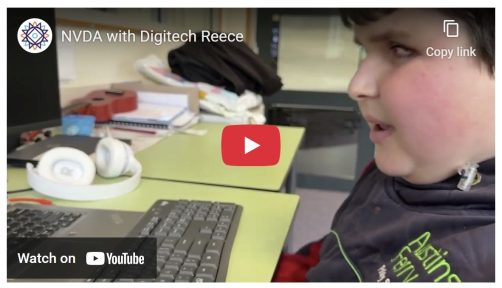
Reece is an energetic young man from Australia. He is 11 and in grade 5 at primary school. Reece is an enthusiastic and passionate advocate for accessibility – something we strongly support. We were thrilled that he made a video showcasing how he uses NVDA – and remember, he is only 11 years old! Do check out our story on Reece and the video he made. He even mastered AI to make intro music!
World Blindness Summit Presentation
Earlier this year, NV Access board member Emma and General Manager James attended the World Blind Union General Assembly and World Blindness summit in Sao Paolo Brazil. Building on the Summit and WBU GA’s theme of “A fragile world, an unbreakable movement: together towards inclusion,” Emma and James presented at a panel session about NVDA, and how community powered access is fostering global inclusion. Describing NVDA as core to a resilient movement, the NV Access team discussed the need for equal access in an increasingly digital world, and that technology should be a right not a luxury, reinforcing the NV Access commitment to always providing free and open-source access to all. James and Emma called upon the leaders of the blind community to be advocates for a more inclusive world in government and policy, speak for the inclusion of free and open-source assistive technology in public policy.
We are very excited to present a video with highlights from the WBU presentation.
This video is well worth watching, particularly the passionate chant at the end!
Finding Things
Many contributions to NVDA come from our community. Today’s tip is an example of something prompted by a community conversation. In this case, it’s thanks to Gene in the NVDA user group. Gene finds NVDA’s find function invaluable, and was concerned that using Find on the web is under-utilised and not taught as widely as it could be by assistive technology trainers. This prompted us to double check that it is covered adequately in the official NVDA training material. Any trainers using Basic Training for NVDA in their teaching will, uh, find, the NVDA find command covered at least twice. You can use NVDA+control+f to search for text in any document in Browse mode. Then use NVDA+f3 to jump to the next occurrence or NVDA+shift+f3 to jump to the previous occurrence of the text searched for. This can be useful to find text on a web page (except when filling in a form in focus mode). It also works when reading a document such as Microsoft Word in Browse mode. Searching on a web page is the most common use for NVDA’s find command. This is particularly because while the browser provides a find function, this is not accessible.
So, where can NVDA’s find function come in handy? Lots of places! Particularly where you know text at, or near, where you want to move to. We use a table of contents for In-Process now, but if we didn’t, you could find this article by loading this page and using find to find the word “find”. On NVDA’s “Support us” page, there are buttons to make a donation (via PayPal), but if you are in Australia and want to deposit directly into our bank account, you could search for the word “bank”.
How else do you use find, and where do you find it most useful? Do continue the conversation in the NVDA user group!
That’s all for this edition, and for 2025! Thank you so much for all your support this year. Please do join in the conversation in the official NVDA user group, or on social media. Why not take time over the holidays to refresh your NVDA skills with our training material? Most importantly, relax, spend time with loved ones, and stay safe, and we’ll be back in 2026!