Happy All Saints Day / All Souls Day (I’m conscious of time zones, it is one of those two days for everyone, depending on where you are in the world). And wherever you are – Happy new NVDA release 🙂 Ok that was last week, but it’s like a birthday, the celebration doesn’t have to end just because the calendar has ticked over 🙂 This time around, we have:
NVDA 2026.3
The exciting news this time around is that NVDA 2026.3 is now available for download. This release includes significant performance improvements, improvements to NVDA’s dialogs, and expanded touch screen input.
Please note: We are aware of an issue for users of Brazilian Portuguese. We will have an update out shortly. Right now, affected users can find Release Candidate Snapshot Builds or you can downgrade to NVDA 2026.2.
Back to NVDA 2026.3: Several performance improvements have been made to reduce lag and improve responsiveness. NVDA now fetches and caches more information about controls in the background, improving performance in controls such as combo boxes and File Explorer. NVDA no longer causes File Explorer or other applications to crash when NVDA is exited or restarted. NVDA now recovers more quickly when an application stops responding, and will no longer freeze or flood the log with errors from unresponsive applications.
Context menus and keyboard shortcuts have been added to the Configuration Profiles, Input Gestures, and Speech Dictionaries dialogs, making these dialogs easier to use with the keyboard. It is also now possible to change an existing gesture directly in the Input Gestures dialog. The dialog used to present browsable messages has been modernized and now better supports resizing, maximizing, and minimizing.
Touch screen input has been significantly expanded. Sequential two-flick gestures now combine two flicks in quick succession into a single gesture, greatly increasing the number of bindable touch gestures. Edge gestures are also now supported, allowing gestures that start from any screen edge to be bound independently from the same gesture performed in the centre of the screen.
A new unassigned command has been added to move the mouse cursor to the centre of the magnified view. Windows OCR can now be used while the Screen Curtain or NVDA’s built-in Magnifier is active.
Liblouis has been updated with new Elfdalian, Sami, Maori, New Zealand Unified English Braille, Haitian Creole braille tables, a Norwegian table for Spanish text, and additional Swedish 6 and 8 dot variants. eSpeak NG has been updated with added support for Ligurian and Abkhaz.
Read the full details and download at: The NVDA 2026.3 Release Announcement.
Low Vision Users
Last fortnight we mentioned the new “Low Vision Users” page with information on various ways a low vision users might get the most out of NVDA. One big feature for this is, of course, the NVDA magnifier introduced in NVDA 2026.2. The post includes details of that, as well as including a link back to the previous blog post comparing the magnifier with the Windows magnifier, so you can judge which one will best meet your needs.
This week, I thought I’d pick out two other specific sections of that page for a closer look. Firstly, a short tip, but a useful one:
Copying information from web pages
Traditionally, NVDA has only the text, not formatting or images, when copying information from web pages. It has also only worked when information was selected with the keyboard. NVDA has an option called “Native Selection Mode” which lets users copy formatting as well.Importantly, if you select text with the mouse and then try to copy it with control+c, this will only work when using “Native Selection mode”. This mode can be toggled for individual pages with NVDA+shift+f10. In NVDA 2026.3 and later, this mode can be enabled automatically in NVDA’s “Browse mode settings”.
This option in Browse mode settings is new for NVDA 2026.3 so well worth highlighting for anyone who can use it.
Visual Highlighter
NVDA’s Visual Highlight puts a border around the current object with focus, which can highlight what NVDA is reading. Press NVDA+control+g to open NVDA’s settings directly. Press control+tab to move between the different pages of settings. Use control+tab to move to the “Vision” page. The user guide describes the colours. Here are the descriptions:
- Solid blue highlights a combined navigator object and system focus location (e.g. because the navigator object follows the system focus)
- Dashed blue highlights just the system focus object
- Solid pink highlights just the navigator object
- Solid yellow highlights the virtual caret used in browse mode (where there is no physical caret such as in web browsers)
NVDA is able to move the focus around documents such as web pages where normally navigation doesn’t work. For instance, without NVDA running, you can’t arrow through a word on a web page. NVDA displays a pink line surrounding the current element with focus, such as a heading or paragraph of text. The yellow outline surrounds the character within that element which has focus (Usually the first character, unless you have moved the caret with, for instance, right arrow). A blue line surrounds the current interactive element (something you can press tab to move to). The “Basic Training for NVDA” module has more tips and techniques for navigating with the keyboard.
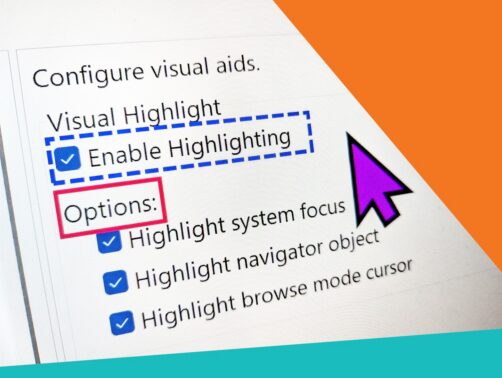 Screenshot of NVDA’s settings screen with a blue dotted highlight for the system focus around the “Enable Highlighting” option, and a pink highlight for the navigator object around the “Options:” heading. The mouse pointer is larger and coloured (refer to Other Windows Settings below).
Website update
We’ve made a couple of small changes to the navbar on the website this week. Hopefully all logical, but worth mentioning just in case:
- News: We removed the “Newsletter” and “Blog” items and replaced them with “News”. This is a menu which has options to “Subscribe” to news, check out our “Blog”, read “NVDA Stories” from users, or binge “All News Posts”.
- We’ve removed the “Create Account / Log In” option and in its place, the “Shop” item is a menu which lets you go to “Shop Training & Support”, “Create Account / Log In”, go to your “Cart” and “Download Purchases” (downloadable material you have previous purchased).
In addition, for those who need it, if you activate the header item for any of the navbar items with submenus (About, Get Help, News or Shop), it takes you to a page with links to each of the options for that section. What do you think? If you’ve got any feedback or any concerns, as always, please let us know.
Training for Accessibility Testers
Last fortnight we shared our new “Accessibility Testing with NVDA” package. There has been a lot of interest in this, but I did want to cover one question we did get: Does the Accessibility Testing with NVDA package lead into the “NVDA Expert Certification”?
The answer is “No”, as they are aimed at different groups of users:
NVDA Expert Certification is aimed at users who want to prove their screen reader skills (e.g. to potential employers) or professionals who teach or support NVDA users. The exam covers the skills an end user would need to know, but which are not important for accessibility testing. A good training module to lead into this exam is “Basic Training for NVDA”. This module teaches things such as how to navigate around text by word, sentence and paragraph, how to search for text on a page, and copy it. It also covers using tools such as OCR or object navigation for getting around places which aren’t as accessible.
“Accessibility Testing with NVDA” on the other hand, covers some NVDA skills, but places more emphasis on the information the screen reader is giving you which can help you ascertain the accessibility of your content. This module does not cover the finer points of searching or navigating by word, but notes the way nonvisual users can locate important information on a page, and the kinds of elements which can be useful for this. Instead of covering features for accessing inaccessible content, Accessibility Testing with NVDA highlights ways of checking that your content is accessible, and what to do if it is not.
If you are an accessibility professional who wants a way to show the world that accessibility is important to you and that you do incorporate NVDA in your testing, then we do have good news. The “Accessibility Testing with NVDA” package includes a badge you can add to your email signature, your website or elsewhere. We encourage you to display it proudly!
That’s all for this week. We’ll be back in a fortnight with more. Do try out NVDA 2026.3 if you haven’t already. We hope you enjoy the performance and other improvements, and we look forward to sharing more highlights with you soon.