Welcome to another full edition of In-Process! You can always find this under the “Blog” heading on NVAccess.org, or you can sign up to read this via email!
- NVDA 2026.2 Beta 4
- OCR Follow-up: Extracting text from inaccessible PDF files
- From the Community
- NVDA Gives George Flexibility
- 2026.2 Touch Improvements
NVDA 2026.2 Beta 4
NVDA 2026.2 Beta 4 is now available for download and testing. For anyone who is interested in trying out what the next version of NVDA has to offer before it is officially released, we welcome you to download the beta and provide feedback using our issue reporting process.
Since the last In-Process we’ve had two betas, so let’s recap what they contain:
Changes introduced in Beta 4:
- Updates to translations
- Changed the button layout in the “Add dictionary entry” dialog to vertical
- Changed the magnifier tracking from the center of an object to the start (e.g. top-left for left-to-right languages)
- Fixed saving comments in speech dictionaries
- Added a debug log category for magnifier
- Improvements to Magnifier settings names and layout
Changes introduced in Beta 3:
- Pressing NVDA+control+w on secure screens now opens Magnifier settings as expected
- Highlighter and Magnifier now follow the focused cell in Excel
- Improvements to Magnifier settings names and layout
Be sure to head over to the NVDA 2026.2 Beta 4 Release Announcement for all the details and to download.
OCR Follow-up: Extracting text from inaccessible PDF files
Last fortnight, we wrote an article about some of the updates to NVDA’s OCR capabilities and some recommendations for dealing with inaccessible content.
The article noted the limitations of the built-in OCR, particularly in relation to longer inaccessible PDF files. In fact, there are a number of options you can explore beyond NVDA’s built-in OCR to work with those longer documents where recognising what is on screen will not capture the whole document:
- NVDA add-ons. NVDA has several add-ons which can help with longer, inaccessible documents:
- The NAO add-on (NAO stands for NVDA Advanced OCR) can recognise entire documents at once
- Tesseract OCR add-on can also recognise entire PDF documents, as well as scan and recognise hardcopy documents on a connected hardware scanner
- NVDA also has a number of other add-ons which can help with OCR
- If you have the paid version of Adobe Acrobat, it can also recognise text and export to Word or plain text
- You can try opening the PDF file in Word and it will attempt to convert it to editable text
- AI Services such as Copilot or Gemini can recognise text in PDF files – and NVDA has a number of AI related add-ons which make working with the various AI programs easier
Note that any of these options should be considered a last resort and not something users should be expected to rely on. The results often vary in their accuracy and the amount of information they are able to extract. Documents should be made accessible in the first instance, and creating accessible documents is much easier done by the person who creates them.
From the Community
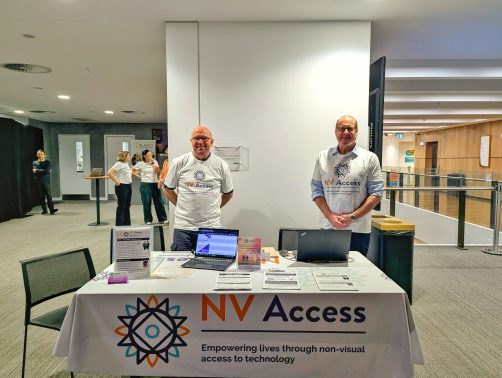
One of the most important parts of NVDA has always been our passionate and dedicated community! Firstly, in our own community news, thanks to everyone who came out to See Differently TechFEST in Adelaide last week. It was a very productive day with lots of great conversations. We met local users and organisations, showed off the latest NVDA 2026.2 Beta, and got lots of great feedback. We also met with See Differently staff who were very excited about how the latest features and improvements in NVDA would benefit their clients.
Our community has been busy and innovative as always as well! While we don’t recommend any specific products, here are a couple of updates from the NVDA community, which have gained interest in some of the NVDA communities:
- Christopher Mutch has launched Speaking Access. An app which lets users control Windows and NVDA entirely through voice commands. It comes with a 30-day trial then one-off cost of $29.95 USD.
- Polyglot, a new NVDA translation add-on available in the NVDA add-on store, by the NVDA Chinese community. We recently covered various ways of working with text in different languages, and add-ons like this are also an ever-evolving part of that ecosystem of options!
- Colin Olkowski shared a solution he developed for his mother using a MIDI controller, some software options he worked out with trial and error, and, of course, NVDA. Is this the ideal setup for everyone? No, but it definitely shows thinking outside the box and repurposing which may work for some – or at least get you thinking.
And a couple from the wider blindness community which might be of interest (again, no specific endorsement, but if you find these useful, you might be interested in David Goldfield’s TechVI list where he often highlights new things like these):
- Intopia.digital recently conducted a survey of assistive technology users in Australia and New Zealand. The results are now available. One thing I found particularly interesting was the high take-up of AI among assistive technology users – 70% of those who use AT on both desktop and mobile incorporate AI into their use.
- And following on from that statistic: A new book by NVDA community member Tony Gebhard: “No Sight Required – The Blind User’s Guide to AI” – A very timely release!
- Kelly Ford, formerly of Microsoft Accessibility, has released QuickMail, a standalone, independent Email client.
NVDA Gives George Flexibility
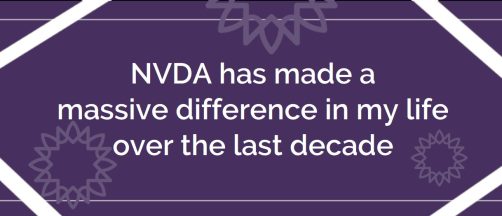
As NVDA celebrates its 20th year this year, George has been an NVDA user for half of that time. He sent us a fantastic testimonial recently. NVDA Gives George Flexibility is bite-sized but powerful. It’s a great reminder of how important access is to technology without additional financial burden for people. Thanks George!
2026.2 Touch Improvements
If you have a touch screen, NVDA 2026.2 (currently in beta) contains some updates you might be interested in trying.
What’s new
- Added pinch in and pinch out touch gestures, allowing two-finger pinch gestures to be bound to scripts. (#19963, @kefaslungu)
- Added touch-based navigation of browse mode elements, allowing touch screen users to move between links, headings, form fields, lists, tables and other quick navigation elements. (#3424, @kefaslungu)
- Flick down or up to cycle through element types; flick right or left to navigate between elements of the selected type
- The element types shown when cycling can be configured in the Browse Mode settings panel
How to use touch
touch gestures in the user guide. And a section in the User Guide on the touch settings available.You can toggle touch interaction support, by pressing NVDA+control+alt+t or from the settings.
The most basic action you can perform with the touch screen is to announce the control or text at any point on the screen. To do this, place one finger anywhere on the screen. You can also keep your finger on the screen and move it around to read other controls and text that your finger moves over.
Gestures can involve tapping the screen one or more times, with one or more fingers. You can also “flick” with one or more fingers, up, down, left or right.
There are many more NVDA commands than possible touch gestures. NVDA has several touch modes you can switch between which make certain subsets of commands available. The two modes are text mode and object mode. To toggle touch modes, perform a 3-finger tap.
You can use a touch keyboard to enter text and commands from a touch screen. When focused on an edit field, bring up the touch keyboard by double-tapping the touch keyboard icon on the bottom of the screen.
Each command in the user guide, or the commands quick references (both available from NVDA’s help menu) can have up to three gestures listed. The desktop keyboard shortcut, the laptop keyboard shortcut, and the touch gesture. The touch gesture is blank for many commands, but in these cases, a gesture can be assigned in the “Input Gestures” dialog.
That is, of course, an extremely brief overview of some of what you can do with touch, so do investigate the user guide for more. Please note: touch is not available from portable or temporary copies of NVDA. If you wish to test the new touch improvements in the NVDA 2026.2 Beta, you will need to install it.
That’s all for this fortnight. Do try the latest NVDA 2026.2 Beta, check out those community resources and join the conversation on social media or in the NVDA user group!