We continue to move closer to the next stable release! Let’s have a look at what’s new, at some tips for using multiple languages, and some organisational news as we farewell a member of the team:
NVDA 2026.1 Beta 10
We continue to move closer to the next stable release. NVDA 2026.1 Beta 10 is now available! Since our last In-Process blog post came out, we’ve had betas 9 and 10, so let’s have a look at both of those:
Changes introduced in Beta 10:
- Prevented an intermittent crash in Notepad++.
- Fixed restoring MathCAT settings when reverting or resetting NVDA’s configuration.
- Fixed the SAPI 4 synth driver.
- Updates to translations.
Changes introduced in Beta 9:
- Improved the “Copy Settings to System-wide Configuration” dialog to show the version of add-ons already present in the system-wide configuration. Add-ons that are already present will be checked by default. A warning will also be shown if copying the user configuration to the system-wide configuration will remove add-ons from the system-wide configuration.
- Fixed the state of screen curtain not being saved when changed via the settings dialog.
- Disabled the “Copy version number” button in the “About NVDA” dialog when running in secure mode.
- Fixed the input help message for MathCAT navigation commands.
- Excluded the “Math” category from the settings dialog when running on secure screens.
- Reverted the fix for some cases of NVDA crashing on secure screens introduced in beta7.
- Fixed the md2html and xliff2html commands of l10nUtil failing when not running from source.
- Updates to translations.
Please download the latest beta and test it out. If you do encounter any issues, please do let us know via GitHub.
Wishing Gerald Well
NV Access would like to share that our Chief Technology Officer, Dr Gerald Hartig, will shortly be leaving the organisation after two and a half years in the role.
Gerald has made a very significant positive impact on NV Access during his time with us. He brought strong energy, leadership and momentum across product, engineering and organisational growth, and we are deeply grateful for all he has contributed. In particular, Gerald led major work to improve the security and robustness of our server infrastructure, greatly strengthened our processes around product prioritisation and roadmapping, and gave the organisation the motivation and confidence to move ahead with several significant projects related to NVDA. It is fair to say that all of these things have left us in a much stronger position moving forward. While Gerald is leaving for personal reasons, he goes with our sincere thanks and best wishes for the future. For the interim, NV Access founder Michael Curran will step back into the CTO role while we consider the best longer-term structure and begin recruitment to fill the gap.
As always, NV Access remains focused on the future. We are excited for what lies ahead, including NVDA’s 20th anniversary, the upcoming NVDA 2026.1 release, and continued work on a number of important projects, including magnification, improving add-on security, and much more. We thank Gerald again for his contribution to NV Access and NVDA, and we look forward to sharing more soon.
Working with Languages
We often get asked about how to work with texts in multiple languages, so I thought I’d share some tips. We have a lot of users who work with multiple languages more frequently than I do though, so if you’ve got a tip which isn’t covered here, please let us know!
- Firstly, setting NVDA’s language. Press NVDA+control+g to open NVDA’s general settings (or press NVDA+n to open the menu, then p for preferences, then enter to open settings). The first option on this page is “NVDA Language“. This is set to “user default” which is the language you have Windows set to. This setting controls the language NVDA’s interface, settings and messages are presented in. Normally, user default is the one you want, but you can change this if desired (use the arrow keys or press the first letter of the chosen language and down arrow from there). If your favourite language isn’t listed here, or is not fully translated, we’d love your help! See our information on NVDA Translation and Localisation on how you can help and how to get started.
- Next, let’s make sure there is a synthesizer which can read your chosen language. NVDA uses Windows OneCore Synthesizer by default. This is a fairly human-sounding synthesizer, which is built-in to Windows 10 and later. While there are quite a few languages available for OneCore, Windows only installs voice packs you ask it to. Generally, the one for the language Windows is first setup in, and any you manually install. We’ve previously covered how to install new languages for Windows OneCore.
- NVDA also comes with eSpeak-NG, a responsive synthesizer. eSpeak-NG works with over 120 languages, some not available in other synthesizers, and all included with no additional download needed. Other synthesizers you install may include multiple languages which may require additional downloads. See their documentation for assistance. In order to change between synthesizers, press NVDA+control+v to open NVDA’s voice settings. The first control tells you which synthesizer is active. Press tab to the “Change” button where you can select a new synthesizer. Once a synthesizer is selected, additional options such as the speech rate, and voice can be chosen. This page may include different options depending on the synthesizer chosen. Windows OneCore uses human names for each voice, and you need to work out which one speaks which language (Microsoft Catherine is Australian English, Microsoft Hoda is an Arabic voice, etc). The “Voices” in eSpeak-NG are named after their language: “Arabic”, “English (United Kingdom)”, etc, and there is also a “Variant” option to change the sound.
- When reading any text (a web page, email, Word document, etc), NVDA will read it in the language it declares it is in. Web pages can use a “lang=” attribute, Word documents have a language setting – other programs and documents have their own ways of declaring the language. In that case, NVDA will automatically switch to that language IN THE CURRENT SYNTHESIZER if the current synthesizer supports it. We wrote a post about automatic language switching several years ago, but the information is still the same
- NVDA’s ability to change languages automatically is set by two settings on NVDA’s “Speech Settings” page, “automatic language switching” and “automatic dialect switching”. if you do NOT want NVDA to automatically change voice based on the language then uncheck these (Dialect is whether it will switch from US English to UK English if a document specifically notes it is in UK English). Refer to this blog post for more info on automatic language switching.
- NVDA includes many braille tables for different languages. By default, the Output table is set to “Automatic”. This uses “Unified English Braille, grade 1” for English text, and will attempt to change to a suitable table for other languages. If you specifically set the Braille table to another table, then it will not change automatically.
- NVDA has a feature called “Configuration Profiles”. Essentially, these let you save and load different groups of NVDA settings. This can include a particular synth in a particular dialect. You can then assign a keystroke to launch this. So, you might set NVDA+alt+1 to use the “English” profile and NVDA+alt+2 to switch to your preferred “Chinese” profile with a different synth. See this blog post on configuration profiles for a walkthrough.
- NVDA has a range of add-ons, including ones which offer alternate ways of changing language. If you open NVDA’s add-on store and search for “language” or “Synth”, you will find numerous add-ons which may help. I know there is a popular one called “Switch synth”. Since first writing this, I had another user contact me to recommend VoiceToggle, and I know they aren’t the only ones. I included a walkthrough of installing add-ons in our previous blog post.
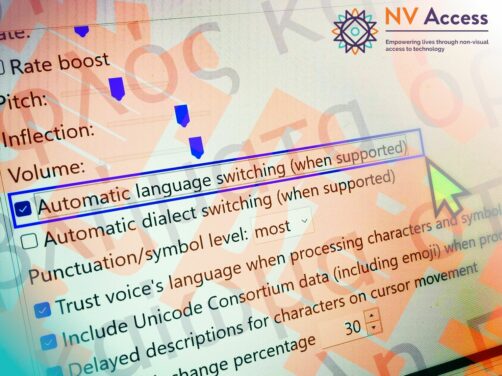
NVDA speech settings screen with “Automatic language switching (when supported)” selected. Image is overlaid with text in Greek and Japanese.
That’s all for this week. Do try the latest beta, and let us know if you have any tips for working with multiple languages I missed. And from me, and from all of the NV Access team, thank you Gerald and all the best for the future!